Tag: widgets

  • Google Maps Widget Shortcut on Android: 5 Ways to Skip the App

    Google Maps Widget Shortcut on Android: 5 Ways to Skip the App

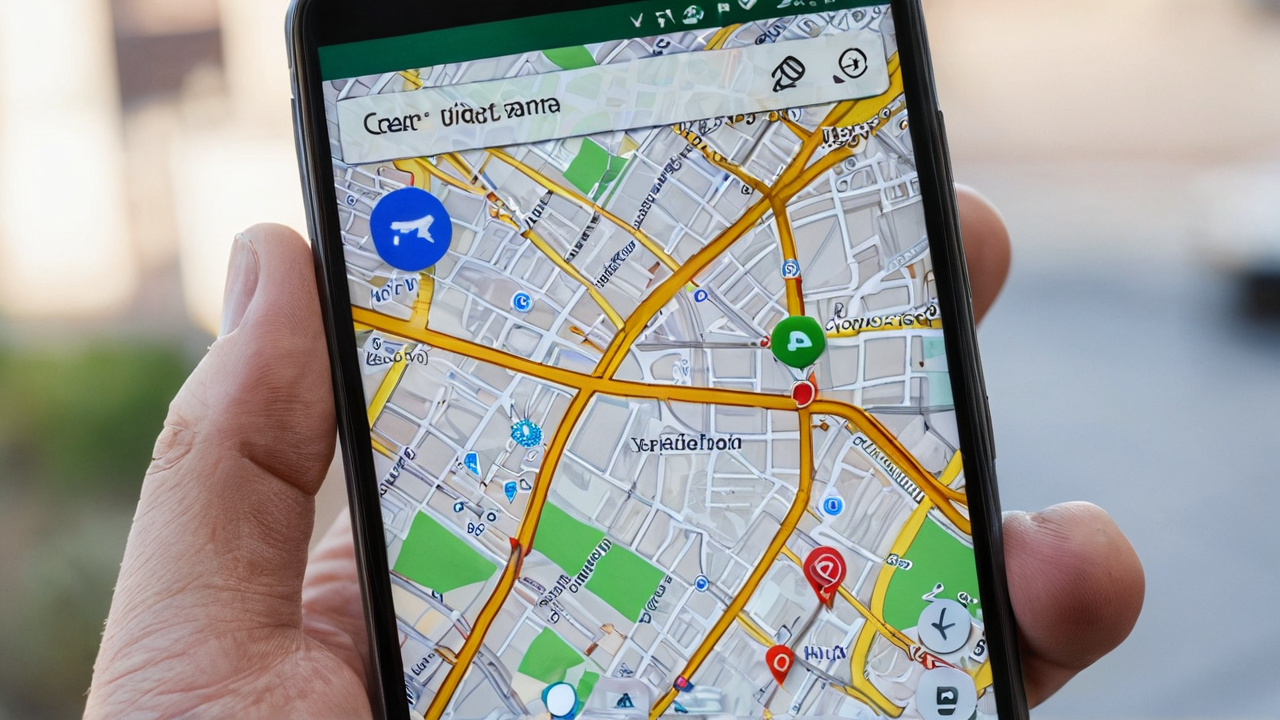
    Google Maps has five home screen shortcut widgets most people never notice, including one that puts live traffic conditions right on your screen without opening the app. Here’s how to add them on Android.

    Add the Google Maps Widget

    1. Long-press an empty area on your home screen.
    2. Tap Widgets.
    3. Scroll to the Maps section.
    4. You’ll see two widget options and five shortcut icons — drag whichever one you want to your home screen.

    The Traffic Shortcut Widget

    This is the one worth grabbing first. It shows live traffic conditions on a small map preview without opening the full app, so a two-second glance before you head out tells you if your usual route is backed up.

    Home and Work Shortcuts

    Maps only has two saved-location shortcuts by default: Home and Work. Set these up once inside the Maps app under your saved places, and the shortcuts pull directions to either address with a single tap.

    I actually set this up on my mother-in-law’s phone. She used to type her mom’s address into Maps every single time she wanted directions — same address, every visit. I showed her the widget once, dropped her most-visited spots on the home screen, and she hasn’t typed an address since. If there’s one shortcut worth the home screen real estate, it’s this one.

    One-Tap Directions to Any Destination

    Want a shortcut to somewhere that isn’t Home or Work? Open Google Maps, search for the destination, tap the three-dot menu, and select Add route to Home screen. This drops a dedicated icon that jumps straight into turn-by-turn navigation for that specific spot — handy for a gym, a regular client site, or a relative’s house.

    Why the Widget Beats Opening the App

    Every one of these shortcuts skips the app’s full load time and search screen. For traffic checks especially, that’s the difference between a two-second glance and a fifteen-second detour into the app just to see if you should leave five minutes early.

    Same idea as the search bar shortcuts we covered for weather, sports, and news — see our guide on Google app widget shortcuts for the full home screen setup.

    Support our Other platforms by visiting Dot.Cards/Gigaswerx
  • Google App Widget Shortcuts: How to Add Sports, News and Weather to Your Home Screen

    Google App Widget Shortcuts: How to Add Sports, News and Weather to Your Home Screen

    Google updated the search bar widget on Android to support custom shortcuts for news, weather, sports, and other services. If you’re running version 16.3.34 or newer of the Google app, you can add a one-tap shortcut right next to the voice and Lens icons. Here’s how to set it up.

    Check Your Google App Version

    Open the Google app, tap your profile icon in the top right, then tap Settings > About. You need version 16.3.34 or higher. If you’re behind, update through the Play Store.

    Add a Shortcut to the Search Widget

    1. Open the Google app and tap your profile icon.
    2. Go to Settings > Search Widget > Customize Search Widget.
    3. Scroll to the Shortcuts section.
    4. Pick one shortcut: Weather, Sports, Translate, Finance, or News.
    5. The shortcut icon appears on the search bar widget next to Voice Search and Google Lens.

    You can only add one shortcut at a time. Swap it out anytime by going back to the same settings menu.

    Customize the Widget Appearance

    In the same Customize Search Widget screen, you can adjust:

    • Shape — rounded corners, pill shape, or rectangular
    • Color — match your wallpaper or pick a custom color
    • Transparency — make the widget blend into your background or stand out

    One limitation: shortcut icons don’t follow Material You dynamic theming. They keep their default Google colors regardless of your wallpaper palette.

    Add the Widget If You Don’t Have It

    If the Google search bar isn’t on your home screen already:

    1. Long-press an empty area on your home screen.
    2. Tap Widgets.
    3. Find the Google section and drag the search bar widget to your home screen.

    On Pixel phones, the search bar is pinned to the bottom by default and can’t be removed through normal settings. The customization options still apply — just access them through the Google app settings instead of long-pressing the widget.

    Check out our other article for 5 great methods for screenshots here 

    More Android tips: See the full Android Tips & Tricks hub for widget shortcuts, screenshot methods, the DND fix, Advanced Protection, and Scrcpy in one place.

Verified by MonsterInsights