
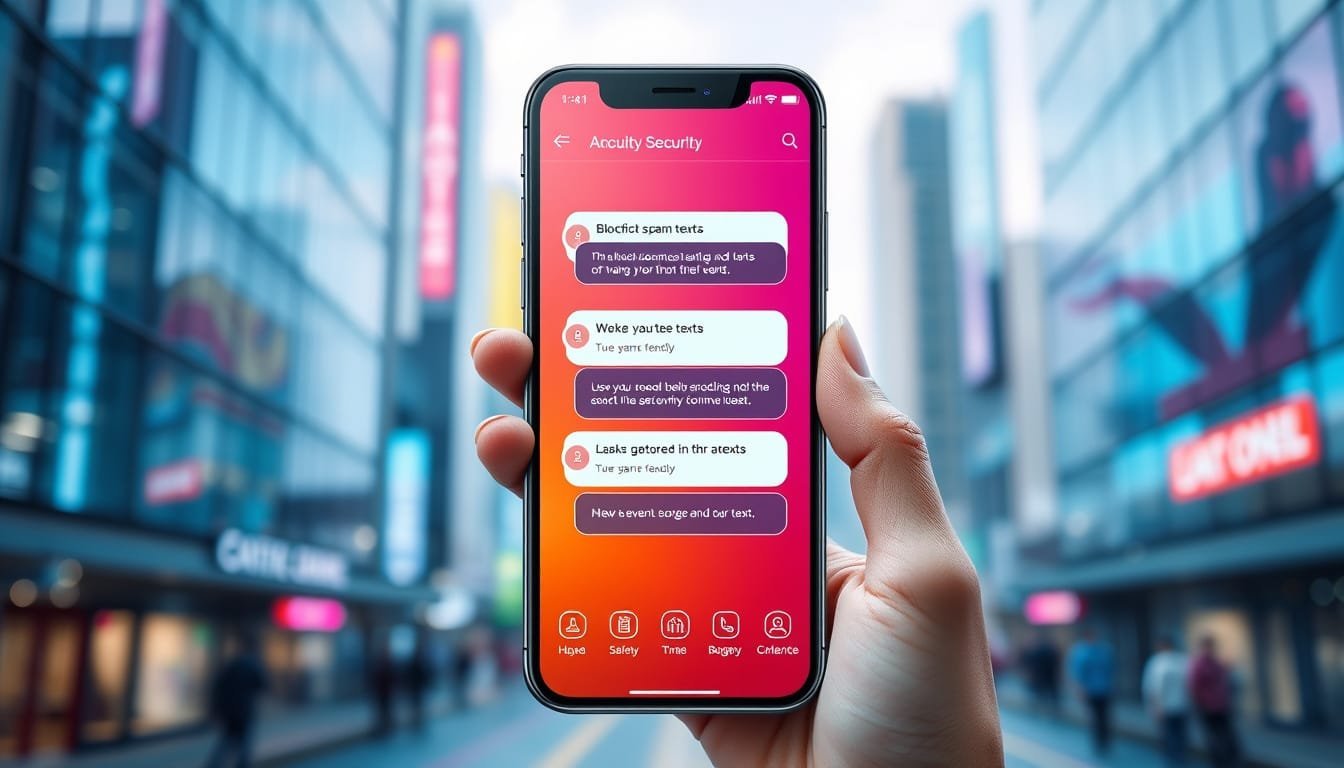
iOS 26 added real anti-scam filtering to the Messages app. If you’ve been getting hammered with fake package alerts and phishing links — and statistically, most of us have — here’s what actually changed and how to set it up.
What iOS 26 Changed in Messages
Apple added automatic message categorization. Your texts now get sorted into groups: known contacts, unknown senders, and spam. The sorting happens on-device, so Apple isn’t reading your messages on a server somewhere.
The spam category does three things that matter:
- Disables all links and phone numbers in flagged messages. You literally can’t tap a phishing link by accident.
- Blocks replies to spam messages. Scammers use replies to confirm your number is active — this shuts that down.
- Silences notifications from unknown senders. No more buzzing at dinner because some bot wants your Social Security number.
How to Turn On Scam Text Filtering
Open Settings > Messages > Unknown & Spam and toggle on Filter Unknown Senders. That’s it. Messages from people not in your contacts will get sorted into the Unknown Senders tab automatically.
For the spam detection layer, make sure you’re running iOS 26 or later. Go to Settings > General > Software Update to check. The spam categorization activates automatically once you’re on the right version.
When Legit Messages Get Flagged
It happens. Delivery notifications from new services, two-factor codes from apps you just signed up for, texts from a new doctor’s office. Any unknown number can land in the filtered pile.
To rescue a message: open the Unknown Senders or Spam tab, find the message, and tap Move to Inbox. The sender gets whitelisted going forward. Check that filtered folder every few days until you’re confident the system has learned your patterns.
What This Doesn’t Fix
On-device filtering isn’t perfect. Scammers who spoof known contacts will still get through. iMessage phishing (where someone sends from an Apple ID, not a phone number) also slips past the unknown-sender filter. Stay skeptical of any message asking you to click a link or share personal info, even from contacts.
For extra protection, report spam messages: long-press the message, tap More, then Report Junk. Apple uses these reports to improve filtering for everyone.
Read our artile on How to Control Your Android Phone from a Computer with Scrcpy
Please support he site by visiting our pother platforms at Dot.Cards/gigawerx