Category: Mobile & Tech Fixes

Step-by-step guides for Android, iPhone, and desktop. Privacy settings, hidden features, and real fixes that actually work.

  • Google Maps Widget on Android: How to Add It (2026)

    Google Maps Widget on Android: How to Add It (2026)

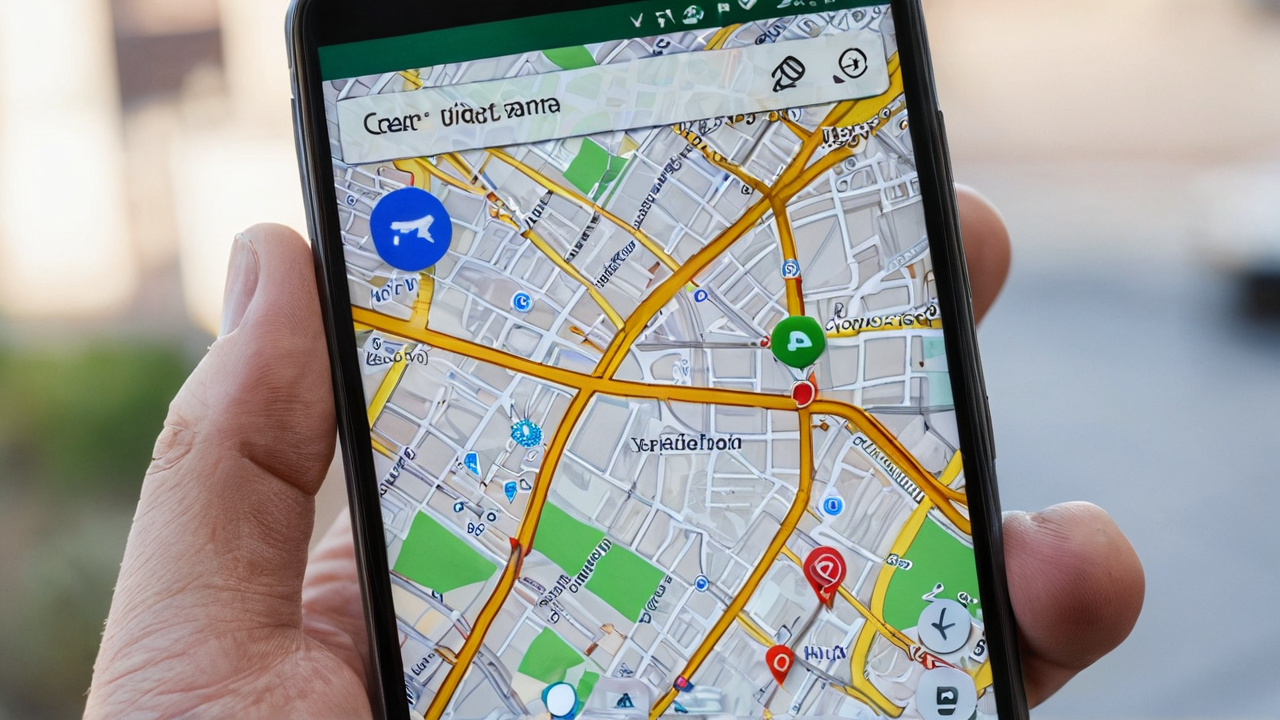
    Google Maps has a handful of home screen shortcuts most people never set up, including a live traffic view you can check without opening the app. This guide covers how to add the Google Maps widget on Android, which shortcut is worth the space, and what to do when the Home or Work button does nothing.

    How to add the Google Maps widget on Android

    1. Long-press an empty area on your home screen.
    2. Tap Widgets.
    3. Scroll to the Maps section.
    4. Pick the widget or shortcut you want and drag it onto a home screen page.

    Two full widgets show up in that list, plus a set of single-tap shortcut icons. If all you want is the plain Maps icon on your home screen, skip the widget list: open the app drawer, long-press Maps, and drag it out.

    The traffic widget: the one to grab first

    It shows live traffic on a small map preview, so a two-second glance before you leave tells you whether your usual route is backed up. No app launch, no search screen. If you only add one Maps widget, add this one.

    Home and Work shortcuts

    Maps ships two saved-location shortcuts by default: Home and Work. Set both addresses once in the Maps app under You > Saved > Labeled, and each shortcut starts directions with a single tap.

    I set this up on my mother-in-law’s phone. She used to type the same address into Maps every visit. I showed her the shortcut once, put her most-visited spots on the home screen, and she hasn’t typed an address since. If one shortcut earns its home screen space, it’s this one.

    One-tap directions to any destination

    Need a shortcut to somewhere that isn’t Home or Work? Search the place in Maps, tap the three-dot menu, and choose Add route to Home screen. You get an icon that jumps straight into turn-by-turn navigation for that spot. It works well for a gym, a regular client site, or a relative’s house.

    Google Maps widget not working? Common fixes

    Home or Work shortcut won’t start directions

    Most of the time the label isn’t set. Open Maps, go to You > Saved > Labeled, and confirm both Home and Work have an address. Then remove the shortcut from your home screen and add it again so it picks up the saved place.

    Traffic widget shows a blank or stale map

    The widget depends on Maps refreshing in the background. Check that Location is on and that Maps has location permission. On Samsung phones, also open Settings > Battery > Background usage limits and make sure Maps isn’t in the sleeping or deep sleeping list. Battery savers are the usual cause of a widget that only updates when you open the app. If your battery is already draining fast, run our Android Battery Drain Fixer before loosening limits on more apps.

    The widget disappeared after an update

    Launcher or Maps updates sometimes drop widgets from the home screen. Re-add it from the Widgets list. Your saved places live in your Google account, so nothing is lost.

    Update: Galaxy Z Fold 8 Ultra

    I have since moved from the S26 Ultra to a Galaxy Z Fold 8 Ultra. The Maps widget and shortcut steps above work the same way on it, and the home screen and Widgets menu look the same as before.

    Why the widget beats opening the app

    Every shortcut skips the app’s load time and search screen. For traffic checks, that is the difference between a two-second glance and a fifteen-second detour just to decide whether to leave five minutes early.

    The same idea works for weather, sports, and news. See our guide to Google app widget shortcuts for the search bar setup, or the Android Tips and Tricks hub for more home screen features worth setting up.

    Please support our other platforms it helps support the site, Thanks! Check out our links at Linktree and Dot Cards.
  • Google Sports Shortcut on Android: Add It in 1 Minute

    Google Sports Shortcut on Android: Add It in 1 Minute

    The Google search bar widget on Android takes a custom shortcut for weather, sports, news, finance, or translate, sitting next to the voice and Lens icons. If you run Google app version 16.3.34 or newer, you can set it up in about a minute. This guide covers the setup, the sports shortcut, and what to check when the option doesn’t show up.

    Check your Google app version

    Open the Google app, tap your profile icon in the top right, then Settings > About. You need 16.3.34 or higher. If you’re behind, update through the Play Store and restart the app.

    Add a shortcut to the search bar widget

    1. Open the Google app and tap your profile icon.
    2. Go to Settings > Search Widget > Customize Search Widget.
    3. Scroll to the Shortcuts section.
    4. Pick one: Weather, Sports, Translate, Finance, or News.
    5. The icon appears on the search bar widget next to Voice Search and Google Lens.

    You can only run one shortcut at a time. Swap it anytime from the same settings screen.

    Google sports shortcut: what you get

    The sports shortcut is the one people search for most. Tap it from the home screen and you get sports results without typing a team name into search.

    It is a single slot, so pick based on what you check daily. If you follow a team during the season, sports earns the slot. If you only glance at the sky before leaving, weather does.

    Customize the widget appearance

    The same Customize Search Widget screen lets you change:

    • Shape: rounded corners, pill shape, or rectangular
    • Color: match your wallpaper or pick a custom color
    • Transparency: blend into the background or stand out

    One limitation: the shortcut icons don’t follow Material You dynamic theming. They keep default Google colors whatever your wallpaper palette is.

    Add the search widget if you don’t have it

    1. Long-press an empty area on your home screen.
    2. Tap Widgets.
    3. Find the Google section and drag the search bar widget onto the home screen.

    On Pixel phones the search bar is pinned to the bottom by default and can’t be removed through normal settings. The customization options still apply; you reach them through Google app settings instead of long-pressing the widget.

    Shortcut option missing? Try these fixes

    • Update the Google app. Below 16.3.34 there is no Shortcuts section.
    • Remove and re-add the widget. An older widget instance may not pick up new options until you place a fresh one.
    • Clear the Google app cache. Settings > Apps > Google > Storage > Clear cache. This does not delete your account or data.
    • Check your launcher. Some third-party launchers wrap the search widget. Test with your phone’s default launcher.

    Update: Galaxy Z Fold 8 Ultra

    I have since moved to a Galaxy Z Fold 8 Ultra. The Google app settings and the Customize Search Widget screen look the same as before, so the steps above apply unchanged.

    More home screen shortcuts

    Maps has its own set: see Google Maps widget shortcuts on Android for live traffic and one-tap Home and Work directions. For screenshots, we cover 5 ways to take a screenshot on Android. The full list of features worth setting up lives in the Android Tips and Tricks hub.

    Please support our other platforms it helps support the site, Thanks! Check out our links at Linktree and Dot Cards.
  • 5 Ways to Take a Great Screenshot on Android (Every Method Explained)

    5 Ways to Take a Great Screenshot on Android (Every Method Explained)

    Android has at least five different ways to take a screenshot, depending on your phone brand and model. Here’s every method that works right now, from the universal button combo to Samsung-specific tricks.

    Method 1: Power + Volume Down (Works on All Android Phones)

    Press and hold Power and Volume Down at the same time for about one second. The screen flashes and a preview appears at the bottom. This works on every Android phone made in the last decade — Pixel, Samsung, OnePlus, Motorola, all of them.

    If your phone has a physical home button instead, use Power + Home.

    Method 2: Google Assistant Voice Command

    Say “Hey Google, take a screenshot.” The assistant captures whatever’s on screen. Useful when your hands are full or you can’t reach both buttons easily. Works on any phone with Google Assistant enabled.

    Method 3: Gesture Swipe (Pixel and Samsung)

    On Google Pixel: swipe up from the bottom of the screen to open the recent apps view, then tap Screenshot at the bottom.

    On Samsung Galaxy: swipe the edge of your palm across the screen from right to left. This needs to be turned on first — go to Settings > Advanced Features > Motions and Gestures > Palm Swipe to Capture.

    Method 4: S Pen Screenshot (Samsung Note/Ultra)

    Pull out the S Pen. In the Air Command menu, tap Screen Write. It captures the screen and drops you into an editor where you can annotate before saving. You can also select a specific area with Smart Select instead of capturing the full screen.

    Method 5: Scrolling Screenshot (Long Pages)

    Take a regular screenshot using any method above. When the preview appears at the bottom, tap the scroll capture button (usually a downward arrow icon). Keep tapping it to extend the capture further down the page. This grabs entire web pages, long chat threads, or settings menus that don’t fit on one screen.

    Available on Android 12+ natively. Samsung phones have had this since One UI 2.

    Where Screenshots Get Saved

    Screenshots save to your Screenshots folder in the Gallery or Google Photos app. The file path is usually DCIM/Screenshots/ or Pictures/Screenshots/ depending on your phone brand. You can share directly from the screenshot preview that appears after capture — no need to go dig through your gallery.

    Bonus: Screen Recording

    Need video instead of a still image? Pull down the quick settings panel and tap Screen Recorder. Choose whether to record audio (media, microphone, or both), then tap Start. A 3-second countdown gives you time to navigate to what you want to record. Tap the notification bar to stop.


    Check out are aticle on The Best Budget USB-C Docking Station Under $50 (Tested Against the Junk)


    Please support our other platforms at Dot.Cards/Gigawerx

    It reallt helps us out!

    More Android tips: See the full Android Tips & Tricks hub for widget shortcuts, screenshot methods, the DND fix, Advanced Protection, and Scrcpy in one place.

  • Pixel One-Tap DND Broken? Here’s the 2-Minute Fix (2026)

    Pixel One-Tap DND Broken? Here’s the 2-Minute Fix (2026)

    Pixel One-Tap DND Broken? Here’s the 2-Minute Fix (2026)

    Google changed how Do Not Disturb works on Pixel phones. What used to be a single tap in quick settings now takes multiple taps through a menu. If that’s been driving you nuts, here are two ways to get one-tap DND back.

    What Google Changed

    A recent Pixel update replaced the DND quick toggle with a shortcut that opens a settings panel instead of just toggling DND on and off. Google probably did this so people would configure DND schedules and exceptions instead of using it as a blunt mute button. The result: something that took one tap now takes three or four.

    Fix 1: Install Simple DND

    Simple DND is a free app on the Play Store that adds a real one-tap DND toggle back to your quick settings panel.

    1. Download Simple DND from the Google Play Store.
    2. Pull down your quick settings panel and tap the pencil icon to edit tiles.
    3. Find the Simple DND tile and drag it into your active tiles.
    4. Tap it once to toggle DND on or off — done.

    Fix 2: Add DND to Your Lock Screen

    If you want DND accessible without even unlocking your phone:

    1. Go to Settings > Display > Lock screen.
    2. Tap Shortcuts.
    3. Replace one of the existing lock screen shortcuts with Do Not Disturb.

    Now you can toggle DND straight from the lock screen with one tap.

    Tell Google You Want It Back

    If enough people complain, Google sometimes reverts these changes. Go to Settings > Tips & support > Send feedback and tell them you want the original one-tap DND toggle restored. Short, specific feedback works better than rants — just say what changed and why the old way was better.

    Help support us by visiging our other platforms Dot.Cards/gigawerx

    Read our latest article on   Android 16 Advanced Protection: What It Does and Who Needs It

    More Android tips: See the full Android Tips & Tricks hub for widget shortcuts, screenshot methods, the DND fix, Advanced Protection, and Scrcpy in one place.

  • Android 16 Advanced Protection: What It Does and Who Needs It

    Android 16 Advanced Protection: What It Does and Who Needs It

    Android 16 ships with an Advanced Protection Program that locks your phone down harder than most people need. It’s built for journalists, activists, and anyone whose phone holds information that could get them or someone else in trouble. Here’s what it does, what it breaks, and whether you should turn it on.

    What Advanced Protection Actually Does

    The program bundles several security features into one toggle. Once enabled, your phone enforces all of them at once:

    • Auto-reboot after 72 hours idle. If your phone sits untouched for three days, it reboots into a locked state where data is encrypted at rest. Useful if your device gets confiscated or stolen.
    • No unsecured Wi-Fi connections. The phone won’t connect to open networks without encryption. Blocks the most common man-in-the-middle attack vector.
    • App installs restricted to Google Play Store only. No sideloading APKs, no third-party app stores. Cuts off the main malware entry point on Android.
    • Enhanced Google Play Protect scanning. More aggressive malware detection runs on installed apps.
    • Scam call and message detection. Built-in fraud filtering flags suspicious calls and texts.

    How to Turn It On

    Go to Settings > Security & Privacy > Advanced Protection and follow the setup prompts. You’ll need a Google account with 2FA enabled. The whole process takes about two minutes.

    You can disable it later through the same menu if the restrictions don’t work for your daily use.

    Who Should Actually Use This

    If you handle confidential sources, work in a politically sensitive environment, or travel to places where your phone might be searched at a border crossing, this is worth enabling.

    If you sideload apps, use custom ROMs, or rely on APKs from outside the Play Store, Advanced Protection will break your workflow. The app restriction alone is a dealbreaker for power users who need apps Google doesn’t carry.

    For most people, standard Android security — a strong lock screen, 2FA on your Google account, keeping Play Protect on — covers the real-world threats you’ll face. Advanced Protection is the next tier up, and it trades convenience for hardening that only matters if you’re a specific kind of target.

    Read about One-Tap Do Not Distrub on Google Pixel.

    please supoort us on our other platfroes at dot.cards/gigawerx

    More Android tips: See the full Android Tips & Tricks hub for widget shortcuts, screenshot methods, the DND fix, Advanced Protection, and Scrcpy in one place.

  • How to Control Your Android Phone from a Computer with Scrcpy

    How to Control Your Android Phone from a Computer with Scrcpy

    Scrcpy lets you mirror and control your Android phone from a Windows, Mac, or Linux computer over USB or Wi-Fi. It’s free, open-source, and doesn’t require root. Here’s how to set it up and what you can do with it.

    What You Need

    • An Android phone running Android 5.0 or later
    • A USB cable (USB-C to USB-A or USB-C to USB-C)
    • A computer running Windows, macOS, or Linux

    Step 1: Enable USB Debugging

    On your phone, go to Settings > About Phone and tap Build Number seven times. You’ll see a toast message saying “You are now a developer.”

    Go back to Settings > System > Developer Options and toggle on USB Debugging.

    Step 2: Install Scrcpy

    Windows: Install via Scoop (scoop install scrcpy) or download the zip from the official GitHub releases page. Extract and run from the folder.

    macOS: Install via Homebrew: brew install scrcpy

    Linux: Most distros have it in the package manager. On Ubuntu/Debian: sudo apt install scrcpy

    Step 3: Connect and Run

    Plug your phone into the computer via USB. If prompted on the phone, tap Allow on the USB debugging authorization popup. Check “Always allow from this computer” if it’s your machine.

    Open a terminal or command prompt and type:

    scrcpy

    Your phone screen appears in a window on your computer. Mouse clicks map to taps, keyboard input maps to the phone’s keyboard, and you can drag to scroll.

    Useful Flags

    Scrcpy has command-line options that change how it runs:

    • scrcpy --max-size 1920 — cap the mirror resolution (reduces lag on slower machines)
    • scrcpy --turn-screen-off — mirrors the phone but keeps its screen off (saves battery)
    • scrcpy --no-audio — skip audio forwarding if you don’t need it
    • scrcpy --otg — use mouse and keyboard on the phone without mirroring the screen
    • scrcpy --new-display=1920x1080 — create a virtual display at a custom resolution

    Wireless Connection (No Cable)

    Connect via USB first, then run:

    adb tcpip 5555
    adb connect YOUR_PHONE_IP:5555

    Unplug the cable, then run scrcpy as normal. Latency is higher over Wi-Fi, but it works fine for app testing, message replies, and file management.

    Security Note

    Only download scrcpy from the official GitHub repo. Third-party download sites sometimes bundle malware with it. Turn off USB Debugging when you’re done — leaving it on gives any computer you plug into potential access to your phone’s data.

    Contact us to collaborate or guest writing

    Check out our other platforms here dot.cards/gigawerx

    More Android tips: See the full Android Tips & Tricks hub for widget shortcuts, screenshot methods, the DND fix, Advanced Protection, and Scrcpy in one place.

  • How to Block Scam Texts on iPhone with iOS 26

    How to Block Scam Texts on iPhone with iOS 26

    iOS 26 added real anti-scam filtering to the Messages app. If you’ve been getting hammered with fake package alerts and phishing links — and statistically, most of us have — here’s what actually changed and how to set it up.

    What iOS 26 Changed in Messages

    Apple added automatic message categorization. Your texts now get sorted into groups: known contacts, unknown senders, and spam. The sorting happens on-device, so Apple isn’t reading your messages on a server somewhere.

    The spam category does three things that matter:

    • Disables all links and phone numbers in flagged messages. You literally can’t tap a phishing link by accident.
    • Blocks replies to spam messages. Scammers use replies to confirm your number is active — this shuts that down.
    • Silences notifications from unknown senders. No more buzzing at dinner because some bot wants your Social Security number.

    How to Turn On Scam Text Filtering

    Open Settings > Messages > Unknown & Spam and toggle on Filter Unknown Senders. That’s it. Messages from people not in your contacts will get sorted into the Unknown Senders tab automatically.

    For the spam detection layer, make sure you’re running iOS 26 or later. Go to Settings > General > Software Update to check. The spam categorization activates automatically once you’re on the right version.

    When Legit Messages Get Flagged

    It happens. Delivery notifications from new services, two-factor codes from apps you just signed up for, texts from a new doctor’s office. Any unknown number can land in the filtered pile.

    To rescue a message: open the Unknown Senders or Spam tab, find the message, and tap Move to Inbox. The sender gets whitelisted going forward. Check that filtered folder every few days until you’re confident the system has learned your patterns.

    What This Doesn’t Fix

    On-device filtering isn’t perfect. Scammers who spoof known contacts will still get through. iMessage phishing (where someone sends from an Apple ID, not a phone number) also slips past the unknown-sender filter. Stay skeptical of any message asking you to click a link or share personal info, even from contacts.

    For extra protection, report spam messages: long-press the message, tap More, then Report Junk. Apple uses these reports to improve filtering for everyone.


    Read our artile on How to Control Your Android Phone from a Computer with Scrcpy

    Please support he site by visiting our pother platforms at Dot.Cards/gigawerx

Verified by MonsterInsights