When Android Auto keeps disconnecting mid-drive, navigation freezes and audio drops become a constant frustration. Whether you are using a wired USB-C setup or wireless Android Auto, random disconnects usually trace back to three specific culprits: power management killing background processes, Wi-Fi frequency interference, or an improper initial Bluetooth/wireless handshake.
If you are searching for a permanent solution because Android Auto keeps disconnecting, this guide outlines the six proven troubleshooting steps that restore a stable, uninterrupted connection in 2026.
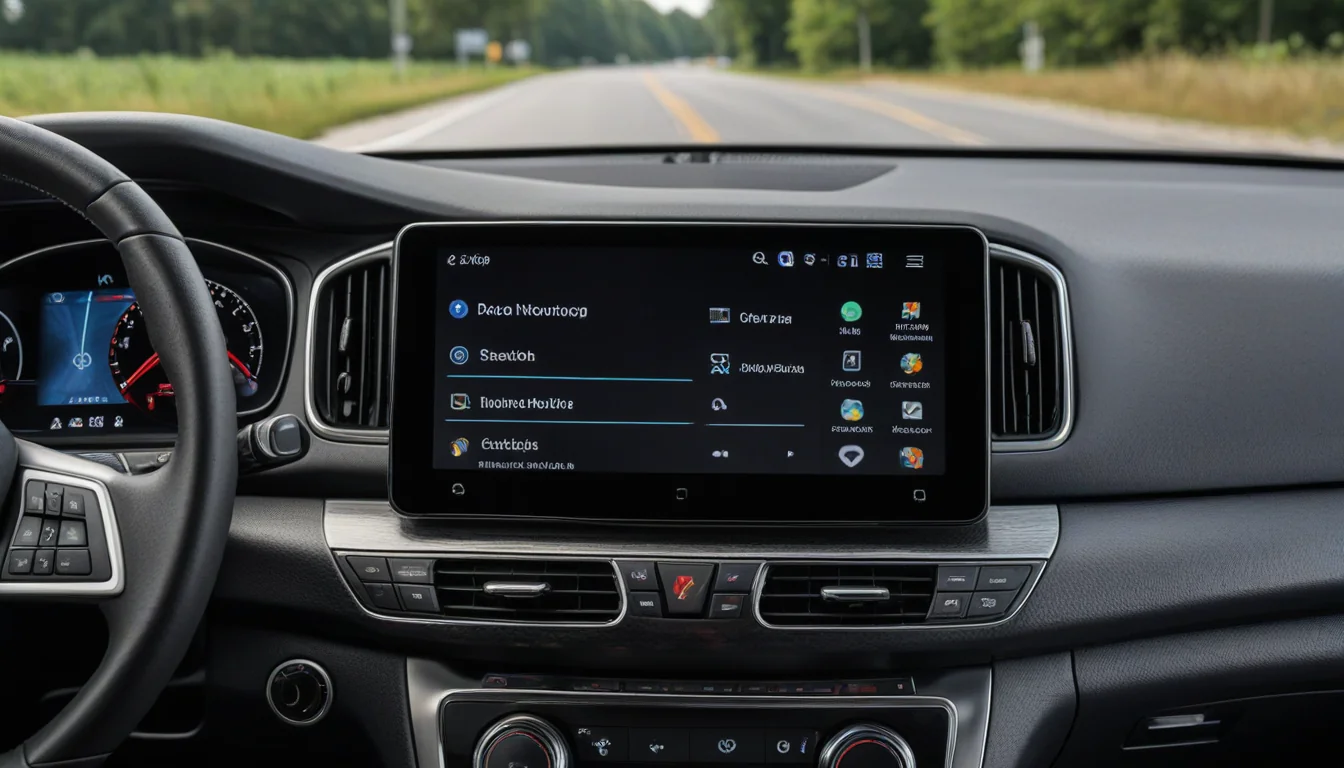
1. The Initial Wired Handshake Trick (Ford Digital Experience & Wireless Head Units)
If your vehicle supports wireless Android Auto but drops out randomly or fails to launch on startup, the initial wireless pairing handshake between your phone and the car’s operating system may be corrupted.
[JOHN: I ran into this exact issue on my 2026 Ford Explorer. Starting with the 2026 model year, Ford moved away from legacy SYNC software to the new Ford Digital Experience (powered natively by Android Automotive OS with Google built-in). Dealership tech notes and community threads recommended connecting my Samsung Galaxy S25 via a high-speed USB-C cable for the initial vehicle pairing first. This allows the Ford Digital Experience operating system to register the phone’s hardware profile and handshake protocols cleanly. Once that initial wired sync was established, I disconnected the cable, and wireless Android Auto locked in reliably without mid-drive drops. I am currently running follow-up testing on the Galaxy Z Fold to verify if the same handshake protocol applies across foldable device profiles.]
2. Disable Battery Optimization for Android Auto & System Services
Modern Android power management (Doze Mode and Adaptive Battery) aggressively puts background apps to sleep to preserve battery life. If Android Auto or its supporting system processes get throttled while your screen is off, the head unit connection will instantly drop.
To prevent Android from putting Android Auto to sleep:
- Open Settings > Apps > Android Auto.
- Tap Battery and select Unrestricted (or disable Pause app activity if unused).
- Repeat this step for Android System Intelligence and Google Play Services.
3. Replace Your USB-C Cable (Wired Connections)
When Android Auto keeps disconnecting over a physical USB connection, standard phone charging cables are usually to blame. Android Auto transfers high-bandwidth display data and audio simultaneously while drawing power. Thin or degraded cables cause instantaneous data drops over small bumps or power surges.
- Use a short (3 feet or shorter) USB 3.1 or USB 3.2 Gen 2 (10Gbps) rated cable.
- Ensure the connector fits snugly into your phone’s charging port without wiggle room.
- Clean lint or debris out of your phone’s USB-C port using a non-conductive wooden toothpick or compressed air.
4. Clear Android Auto Cache & App Data
Accumulated cache files from vehicle firmware updates or app updates can cause handshake collisions when your phone connects to the car’s head unit.
- Go to Settings > Apps > Android Auto.
- Tap Storage.
- Tap Clear Cache, then tap Clear Data.
- Restart your phone and reconnect to your vehicle to establish a clean pairing profile.
5. Lock Wi-Fi Frequency Band & Disable Wi-Fi Scanning
If Android Auto keeps disconnecting wirelessly near intersections or stoplights, background Wi-Fi network scanning is often forcing the 5GHz projection channel to drop. Wireless Android Auto relies on a direct 5GHz Wi-Fi projection channel between your phone and the car.
- Go to Settings > Connections > Wi-Fi.
- Tap the three dots (Advanced) and turn OFF Turn on Wi-Fi automatically and Wi-Fi network notifications.
- Disable any active VPN apps (ExpressVPN, NordVPN, Google One VPN) while driving, as local VPN tunnels block Android Auto’s local IP bridge.
6. Reset Vehicle Infotainment & Bluetooth Profiles
If multiple phones have been paired to your vehicle over time, memory allocation issues in the car’s head unit can cause connection drops.
- In your car’s head unit menu, delete all old paired Bluetooth devices.
- In your phone’s Bluetooth settings, tap Forget on your car’s Bluetooth profile.
- Perform a hard restart on your vehicle’s infotainment system.
Following these six troubleshooting steps will resolve the root cause whenever Android Auto keeps disconnecting on Samsung Galaxy devices or modern car infotainment systems.
Please support our other platforms it helps support the site, Thanks! Check out our latest project walkthroughs and tech guides at Gigawerx Tech Hub.