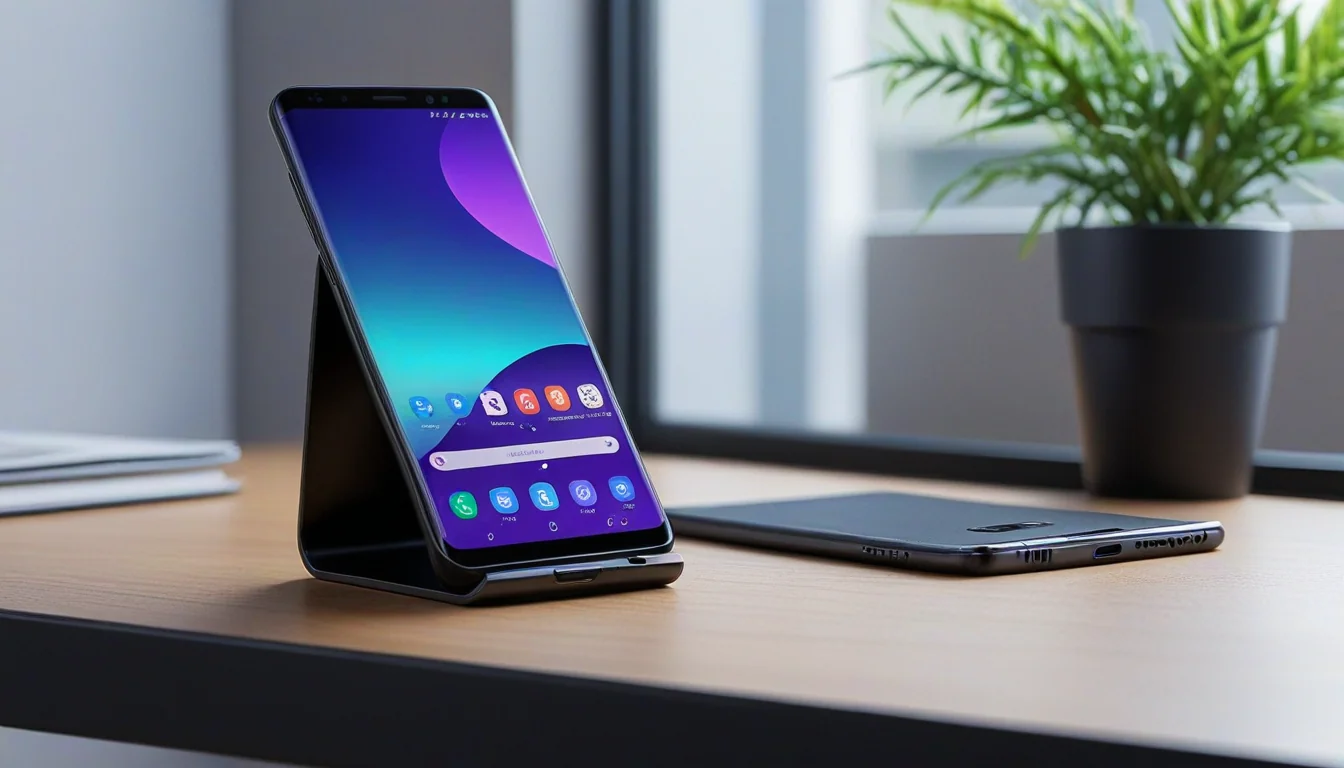
If you searched for Galaxy S25 app lock, Samsung’s built-in answer is Secure Folder. It lets you keep selected apps, photos, files, and accounts behind a separate passcode or biometric check while the rest of the phone stays available normally.
That is the practical option on a Galaxy S25 Ultra today. It is not the same as tapping a lock switch on every app already installed on your home screen, but it does protect the data that matters without requiring a third-party locker app.
- Open it: Go to Settings > Security and privacy > More security settings > Secure Folder. Menu wording can vary by One UI version.
- Add protection: Choose a lock type, then add the apps and files you want inside Secure Folder.
- Lock it: Open Secure Folder and tap Lock and exit when finished.
Samsung’s own support documentation describes Secure Folder as a private area for apps and personal data. That is the path I would use before installing an unknown app-lock utility.
How Galaxy S25 app lock works with Secure Folder
- Abre Ajustes.
- Tap Security and privacy.
- Tap More security settings.
- Select Secure Folder.
- Sign in to your Samsung account if prompted.
- Choose a PIN, password, pattern, or biometric lock.
If Secure Folder is already set up, you can usually open it from the app drawer. If it is hidden, search for it in Settings rather than downloading a replacement from the Galaxy Store or a website.
How to add apps to Secure Folder
- Open Secure Folder.
- Tap the plus button.
- Select the apps you want to protect.
- Tap Add.
- Open one of the added apps and confirm that Secure Folder asks for its lock before showing the contents.
Samsung may create a separate copy of an app inside Secure Folder. That copy does not always share the same login or settings as the copy outside the folder. This is where people get surprised. You protected the app, then opened the unprotected copy by accident.
Check which copy you are using
Look for the Secure Folder badge on the app icon. Keep the protected copy inside Secure Folder and remove the ordinary home-screen shortcut if it causes confusion. For banking, messaging, password, and photo apps, test both copies before assuming the phone is locked down.
How to lock Secure Folder when you leave
Secure Folder has its own automatic-lock setting. The exact choices depend on the One UI version, but the goal is the same: lock the folder when you close it, when the screen turns off, or after a period of inactivity.
- Open Secure Folder.
- Tap the three-dot menu.
- Tap Settings.
- Open Auto lock Secure Folder.
- Choose the setting that fits how you use the phone.
For a phone used in public, at work, or around family members, locking when you leave is usually the sensible choice. The tradeoff is one more authentication prompt. That is a fair price for keeping private messages and photos private.
How to move photos and files into Secure Folder
- Open Secure Folder.
- Tap Gallery or My Files.
- Tap the item you want to move.
- Open the menu and choose Move to Secure Folder.
- Authenticate if Samsung asks you to do so.
Moving a photo into Secure Folder removes it from the regular Gallery view. Check the destination before deleting anything from the original location. A privacy cleanup is not a good time to discover that you moved the only copy of a family photo.
What Secure Folder protects
Secure Folder protects the apps and files placed inside it. It also gives those apps a separate private area for their data. Someone who opens the regular Gallery or app drawer should not see the items stored only inside the folder.
Still, test the phone the way another person would see it. Check lock-screen notifications, recent apps, share sheets, cloud backups, and duplicate app icons. A private folder cannot hide information that you leave outside it.
What Secure Folder does not protect
- It does not automatically move every copy of an app into the folder.
- It does not erase data already synced to cloud services.
- It does not replace a strong Samsung account password or multi-factor authentication.
- It does not stop someone from seeing information you expose through another app or notification.
- It does not make a third-party app trustworthy just because you put that app inside the folder.
Review app permissions separately under Settings > Security and privacy > Permission manager. Pay attention to contacts, photos, microphone, camera, location, and accessibility access. If you do not recognize an app or no longer use it, remove its access.
If your goal is a Galaxy S25 app lock for banking or business apps, Secure Folder handles the on-device barrier. You still need to review permissions, notifications, and cloud backups separately.
Should you install a third-party app locker?
Usually, no. A third-party locker may need accessibility access, notification access, or permission to draw over other apps. Those permissions can create more risk than the lock is worth, especially for banking and password apps.
Secure Folder is less convenient because it works as a separate protected space. That is also why it is easier to trust. Samsung controls the feature, the lock, and the storage boundary instead of handing the job to an app you may not know.
How this compares with Android 17 App Lock
Google’s Android 17 QPR2 beta adds a native App Lock option to supported Pixel phones. That feature locks an existing app from its normal launcher and hides its notifications, widgets, and shortcuts. It is a different implementation from Samsung Secure Folder, and Pixel beta behavior should not be assumed to work on the Galaxy S25 Ultra.
For S25 owners, Secure Folder is the current practical answer. If Samsung adds a direct app-lock feature in a future One UI update, verify it on the actual phone before changing this guide. Samsung menus have a habit of moving furniture while you are still standing in the room.
My S25 Ultra privacy setup
I use Secure Folder every day on my Galaxy S25 Ultra. I keep apps there that I do not want casually visible when someone else is holding my phone, including banking apps and other information tied to my personal and business life.
That matters more now because the phone has become the place where we handle almost everything. Company-sensitive information, business records, tax documents, and tax-preparation apps can all end up on the same device. I would rather put those apps in a separate protected space than depend on someone never opening the wrong icon.
Secure Folder is not a magic shield, and I still pay attention to permissions and notifications. It is a practical extra barrier that I actually use. That is a better test of a privacy feature than installing it once, taking a screenshot, and forgetting it exists.
If you are troubleshooting other Galaxy problems, see Tooled Out’s Galaxy S25 battery-drain guide or the Galaxy S26 Ultra fuzzy-text guide. For broader Android setup help, use the Android tips and tricks guide.
Technical reference: Samsung’s Secure Folder guide.
Please support our other platforms it helps support the site, Thanks!