Tag: Android

  • How to Fix Bluetooth Audio Delay on Android: 5 Proven Steps (2026)

    How to Fix Bluetooth Audio Delay on Android: 5 Proven Steps (2026)

    If you are searching for how to fix bluetooth audio delay on android, few things disrupt video streaming or gaming faster than dialogue that does not match lip movements. Whether you are watching YouTube videos, streaming movies, or playing games over Bluetooth earbuds or car speakers, audio latency creates an annoying lag between the visual on screen and the sound in your ears.

    Bluetooth audio delay on Android stems from three main causes: codec mismatching between your phone and headphones, background audio processing buffer delays, or corrupted Bluetooth cache files. This guide outlines the five proven fixes that eliminate audio out-of-sync issues on Samsung Galaxy devices and Android smartphones in 2026.
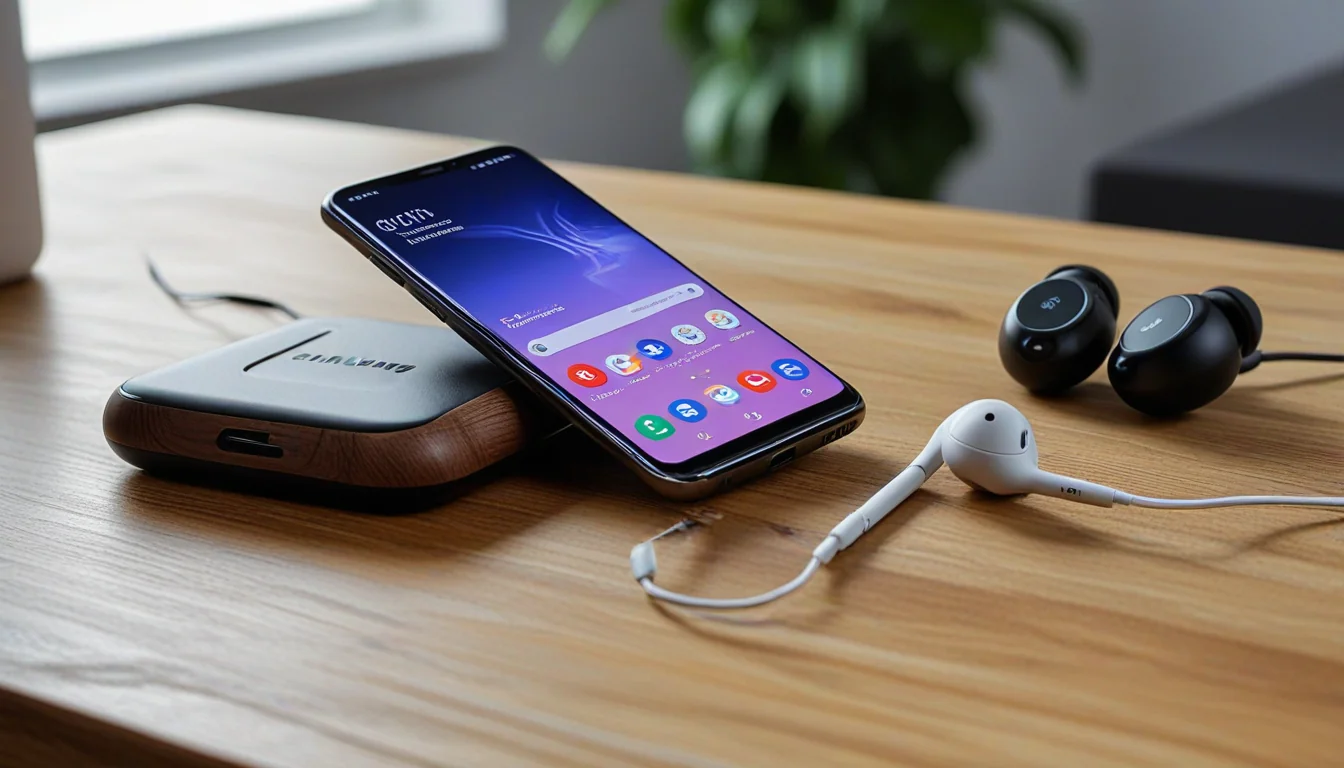
    How to fix bluetooth audio delay on android troubleshooting guide

    1. Switch to a Low-Latency Bluetooth Audio Codec

    Bluetooth codecs dictate how digital audio is compressed and transmitted from your phone to your headphones. Default codecs like SBC prioritize connection stability over speed, introducing noticeable audio lag. High-bitrate codecs (like Samsung Seamless Codec, LDAC, or aptX Adaptive) significantly reduce latency.

    As a long-time Samsung Galaxy owner who has carried the Galaxy Note series, S21 Ultra, S23 Ultra, S24 Ultra, S25 Ultra, and now the Galaxy Z Fold 8 Ultra, Bluetooth codec behavior varies depending on your earbud hardware. On Samsung devices paired with Galaxy Buds, the Samsung Seamless Codec automatically negotiates low latency. However, when pairing third-party headphones or car receivers, manually checking codec compatibility in Developer Options is key to eliminating audio delay.

    To change your Bluetooth codec on Android:

    • Go to Settings > About Phone > Software Information and tap Build Number 7 times to enable Developer Options.
    • Navigate back to Settings > Developer Options.
    • Scroll down to Bluetooth Audio Codec and select LDAC, aptX Adaptive, or AAC depending on what your headphones support.

    2. Disable Absolute Volume Control

    Absolute Volume is an Android feature that merges your phone’s volume controls with your Bluetooth device’s internal volume. While convenient, it frequently causes audio syncing errors and volume discrepancies on third-party Bluetooth speakers and car head units.

    When searching for how to fix bluetooth audio delay on android, disabling Absolute Volume separates your phone’s digital output buffer from the hardware receiver, fixing sync issues:

    • Go to Settings > Developer Options.
    • Scroll down to the Networking section.
    • Toggle ON Disable Absolute Volume.
    • Disconnect and reconnect your Bluetooth headphones for the setting to take effect.

    3. Reset Android Bluetooth & Wi-Fi Network Settings

    Accumulated Bluetooth pairing cache and stale network configurations can cause packet retransmissions, leading to progressive audio lag during long video streams.

    • Go to Settings > General Management (or System).
    • Tap Reset > Reset Mobile Network Settings & Reset Wi-Fi and Bluetooth Settings.
    • Re-pair your Bluetooth headphones and test audio sync.

    4. Toggle Off Media Audio Processing & Dolby Atmos for Gaming

    Advanced audio processing features—such as spatial audio head tracking, custom equalizers, or virtual surround sound—add extra digital signal processing (DSP) rendering time before sound leaves your phone. If you notice severe lag while playing mobile games or watching live streams, turning off DSP spatial effects eliminates the rendering bottleneck.

    • Go to Settings > Sounds and Vibration > Sound Quality and Effects.
    • Turn OFF Dolby Atmos for Gaming and disable custom equalizer presets to test raw audio speed.

    5. Clear Bluetooth Legacy Cache & Re-Pair Devices

    If how to fix bluetooth audio delay on android remains an issue after adjusting settings, corrupt Bluetooth system cache is usually holding onto legacy buffer sizes from old device pairings.

    • Go to Settings > Apps.
    • Tap the Filter/Sort icon and toggle ON Show System Apps.
    • Find and select Bluetooth (or Bluetooth Legacy).
    • Tap Storage > Clear Cache, then restart your smartphone.

    Applying these five settings adjustments will resolve lip-sync lag whenever you need to know how to fix bluetooth audio delay on android across wireless earbuds, headphones, and car audio systems.


    Please support our other platforms it helps support the site, Thanks! Check out our latest project walkthroughs and tech guides at Gigawerx Tech Hub and Dot.Cards/gigawerx .
  • Android Auto Keeps Disconnecting? 6 Fixes That Actually Work (2026)

    Android Auto Keeps Disconnecting? 6 Fixes That Actually Work (2026)

    When Android Auto keeps disconnecting mid-drive, navigation freezes and audio drops become a constant frustration. Whether you are using a wired USB-C setup or wireless Android Auto, random disconnects usually trace back to three specific culprits: power management killing background processes, Wi-Fi frequency interference, or an improper initial Bluetooth/wireless handshake.

    If you are searching for a permanent solution because Android Auto keeps disconnecting, this guide outlines the six proven troubleshooting steps that restore a stable, uninterrupted connection in 2026.

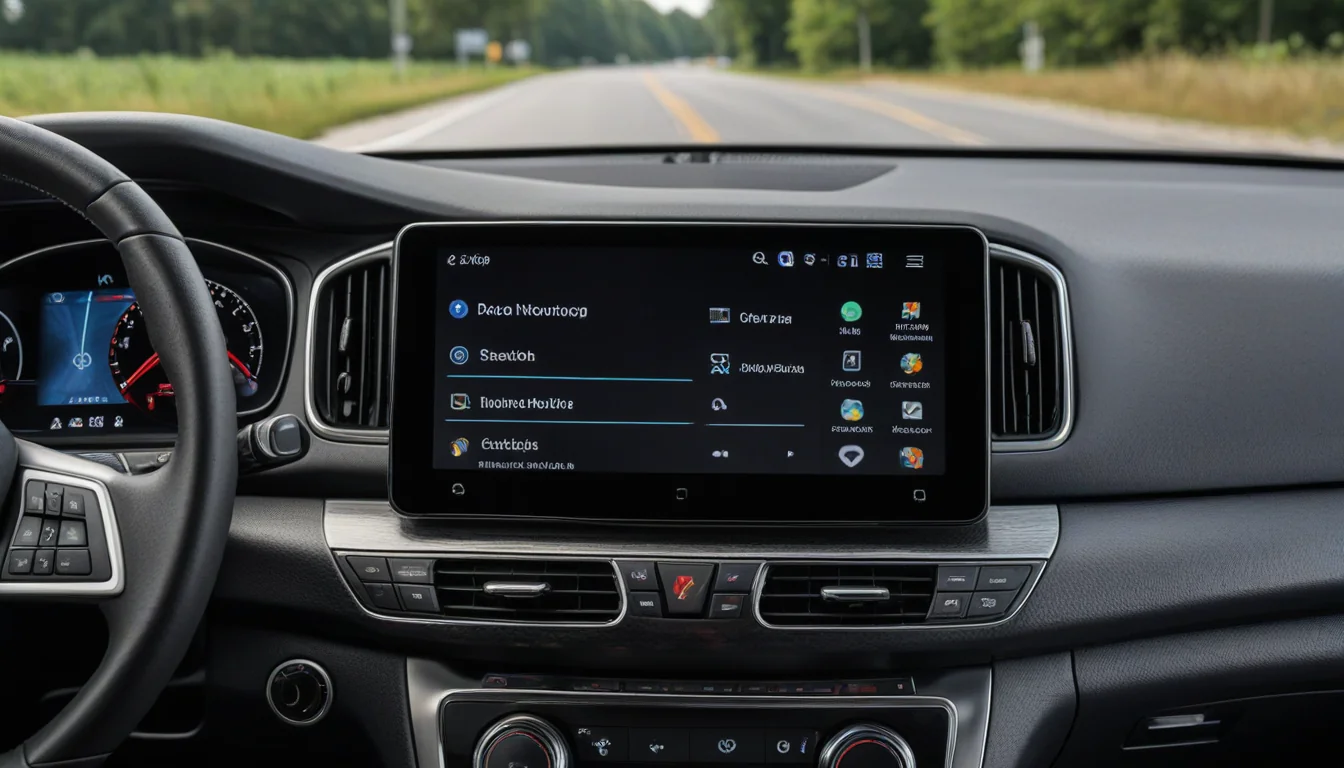
    Android Auto keeps disconnecting fix guide for smartphone and car infotainment

    1. The Initial Wired Handshake Trick (Ford Digital Experience & Wireless Head Units)

    If your vehicle supports wireless Android Auto but drops out randomly or fails to launch on startup, the initial wireless pairing handshake between your phone and the car’s operating system may be corrupted.

    [JOHN: I ran into this exact issue on my 2026 Ford Explorer. Starting with the 2026 model year, Ford moved away from legacy SYNC software to the new Ford Digital Experience (powered natively by Android Automotive OS with Google built-in). Dealership tech notes and community threads recommended connecting my Samsung Galaxy S25 via a high-speed USB-C cable for the initial vehicle pairing first. This allows the Ford Digital Experience operating system to register the phone’s hardware profile and handshake protocols cleanly. Once that initial wired sync was established, I disconnected the cable, and wireless Android Auto locked in reliably without mid-drive drops. I am currently running follow-up testing on the Galaxy Z Fold to verify if the same handshake protocol applies across foldable device profiles.]

    2. Disable Battery Optimization for Android Auto & System Services

    Modern Android power management (Doze Mode and Adaptive Battery) aggressively puts background apps to sleep to preserve battery life. If Android Auto or its supporting system processes get throttled while your screen is off, the head unit connection will instantly drop.

    To prevent Android from putting Android Auto to sleep:

    • Open Settings > Apps > Android Auto.
    • Tap Battery and select Unrestricted (or disable Pause app activity if unused).
    • Repeat this step for Android System Intelligence and Google Play Services.

    3. Replace Your USB-C Cable (Wired Connections)

    When Android Auto keeps disconnecting over a physical USB connection, standard phone charging cables are usually to blame. Android Auto transfers high-bandwidth display data and audio simultaneously while drawing power. Thin or degraded cables cause instantaneous data drops over small bumps or power surges.

    • Use a short (3 feet or shorter) USB 3.1 or USB 3.2 Gen 2 (10Gbps) rated cable.
    • Ensure the connector fits snugly into your phone’s charging port without wiggle room.
    • Clean lint or debris out of your phone’s USB-C port using a non-conductive wooden toothpick or compressed air.

    4. Clear Android Auto Cache & App Data

    Accumulated cache files from vehicle firmware updates or app updates can cause handshake collisions when your phone connects to the car’s head unit.

    • Go to Settings > Apps > Android Auto.
    • Tap Storage.
    • Tap Clear Cache, then tap Clear Data.
    • Restart your phone and reconnect to your vehicle to establish a clean pairing profile.

    5. Lock Wi-Fi Frequency Band & Disable Wi-Fi Scanning

    If Android Auto keeps disconnecting wirelessly near intersections or stoplights, background Wi-Fi network scanning is often forcing the 5GHz projection channel to drop. Wireless Android Auto relies on a direct 5GHz Wi-Fi projection channel between your phone and the car.

    • Go to Settings > Connections > Wi-Fi.
    • Tap the three dots (Advanced) and turn OFF Turn on Wi-Fi automatically and Wi-Fi network notifications.
    • Disable any active VPN apps (ExpressVPN, NordVPN, Google One VPN) while driving, as local VPN tunnels block Android Auto’s local IP bridge.

    6. Reset Vehicle Infotainment & Bluetooth Profiles

    If multiple phones have been paired to your vehicle over time, memory allocation issues in the car’s head unit can cause connection drops.

    • In your car’s head unit menu, delete all old paired Bluetooth devices.
    • In your phone’s Bluetooth settings, tap Forget on your car’s Bluetooth profile.
    • Perform a hard restart on your vehicle’s infotainment system.

    Following these six troubleshooting steps will resolve the root cause whenever Android Auto keeps disconnecting on Samsung Galaxy devices or modern car infotainment systems.


    Please support our other platforms it helps support the site, Thanks! Check out our latest project walkthroughs and tech guides at Gigawerx Tech Hub.

  • Android Battery Draining Fast? Start With These Checks

    Android Battery Draining Fast? Start With These Checks

    Android battery draining fast? Start with these checks

    If your Android phone loses battery overnight, gets hot in your pocket, or started draining after an update, do not change ten settings at once. Check Battery usage first. Then work through the likely cause.

    I built the Android Battery Drain Fixer to make that first check easier for Samsung Galaxy, Google Pixel, and other Android phones. It does not pretend to measure battery health from a webpage. It gives you a short starting list.

    Android battery draining? Check battery usage first

    Open Settings and find Battery usage. The wording varies by phone and Android version, but the screen should show which apps and system functions used power recently.

    Look for an app that used a lot of power while you were not using it. Also check the screen, mobile network, location, and Bluetooth entries. A high percentage is a clue, not proof. Streaming video, weak signal, and navigation can all be legitimate heavy use.

    If it drains overnight or while idle

    Start with recently installed or updated apps. Restrict background activity for an app you do not need running constantly, then check the next morning. Weak cellular signal can also make a phone work harder while it searches for service. Test the phone somewhere with better signal if possible.

    If the phone gets hot

    Check Battery usage around the time it became hot. Restart the phone and update apps. Charge on a hard, ventilated surface and remove a heavy case while testing. Do not put a hot phone in a freezer or refrigerator. Condensation creates another problem.

    If the problem started after an update

    Restart once, install pending app updates, and check Battery usage again. Some post-update work can temporarily increase activity. Persistent rapid drain or heat needs more attention. If one app suddenly moved to the top of Battery usage, update, reinstall, or restrict it.

    If battery drops during normal use

    Compare screen brightness, screen timeout, mobile signal, location, streaming, gaming, and high-refresh display settings. Change one thing at a time. Otherwise you will not know what helped.

    Android battery draining: When settings will not fix it

    Software settings cannot restore worn battery capacity. If the battery is more than two years old, drains unusually fast despite low app activity, or the phone shuts down unexpectedly, ask the manufacturer or a qualified repair provider about a battery diagnostic.

    Safety warning: Stop using and charging a phone that is swollen, smoking, physically damaged, or unusually hot. Move it away from flammable materials and contact the manufacturer or qualified service.

    Informational disclaimer: This article and tool are based on my experience as an IT and telecom project manager and on the manufacturer guidance linked here. They provide general information, not a repair diagnosis or a guarantee of a specific result. Use the suggestions at your own judgment. Stop if your phone shows signs of damage or unsafe heat and contact the manufacturer or a qualified repair provider.

    Android battery draining: Related help

    Use the Android Battery Drain Fixer, or read the Galaxy S25 battery drain guide for device-specific checks. The tool is a quick starting point. The phone’s own Battery usage screen is where you confirm the culprit.

    Sources: Google Pixel battery help and Samsung Galaxy battery optimization guidance.

  • Google App Widget Shortcuts: How to Add Sports, News and Weather to Your Home Screen

    Google App Widget Shortcuts: How to Add Sports, News and Weather to Your Home Screen

    Google updated the search bar widget on Android to support custom shortcuts for news, weather, sports, and other services. If you’re running version 16.3.34 or newer of the Google app, you can add a one-tap shortcut right next to the voice and Lens icons. Here’s how to set it up.

    Check Your Google App Version

    Open the Google app, tap your profile icon in the top right, then tap Settings > About. You need version 16.3.34 or higher. If you’re behind, update through the Play Store.

    Add a Shortcut to the Search Widget

    1. Open the Google app and tap your profile icon.
    2. Go to Settings > Search Widget > Customize Search Widget.
    3. Scroll to the Shortcuts section.
    4. Pick one shortcut: Weather, Sports, Translate, Finance, or News.
    5. The shortcut icon appears on the search bar widget next to Voice Search and Google Lens.

    You can only add one shortcut at a time. Swap it out anytime by going back to the same settings menu.

    Customize the Widget Appearance

    In the same Customize Search Widget screen, you can adjust:

    • Shape — rounded corners, pill shape, or rectangular
    • Color — match your wallpaper or pick a custom color
    • Transparency — make the widget blend into your background or stand out

    One limitation: shortcut icons don’t follow Material You dynamic theming. They keep their default Google colors regardless of your wallpaper palette.

    Add the Widget If You Don’t Have It

    If the Google search bar isn’t on your home screen already:

    1. Long-press an empty area on your home screen.
    2. Tap Widgets.
    3. Find the Google section and drag the search bar widget to your home screen.

    On Pixel phones, the search bar is pinned to the bottom by default and can’t be removed through normal settings. The customization options still apply — just access them through the Google app settings instead of long-pressing the widget.

    Check out our other article for 5 great methods for screenshots here 

    More Android tips: See the full Android Tips & Tricks hub for widget shortcuts, screenshot methods, the DND fix, Advanced Protection, and Scrcpy in one place.

Verified by MonsterInsights