
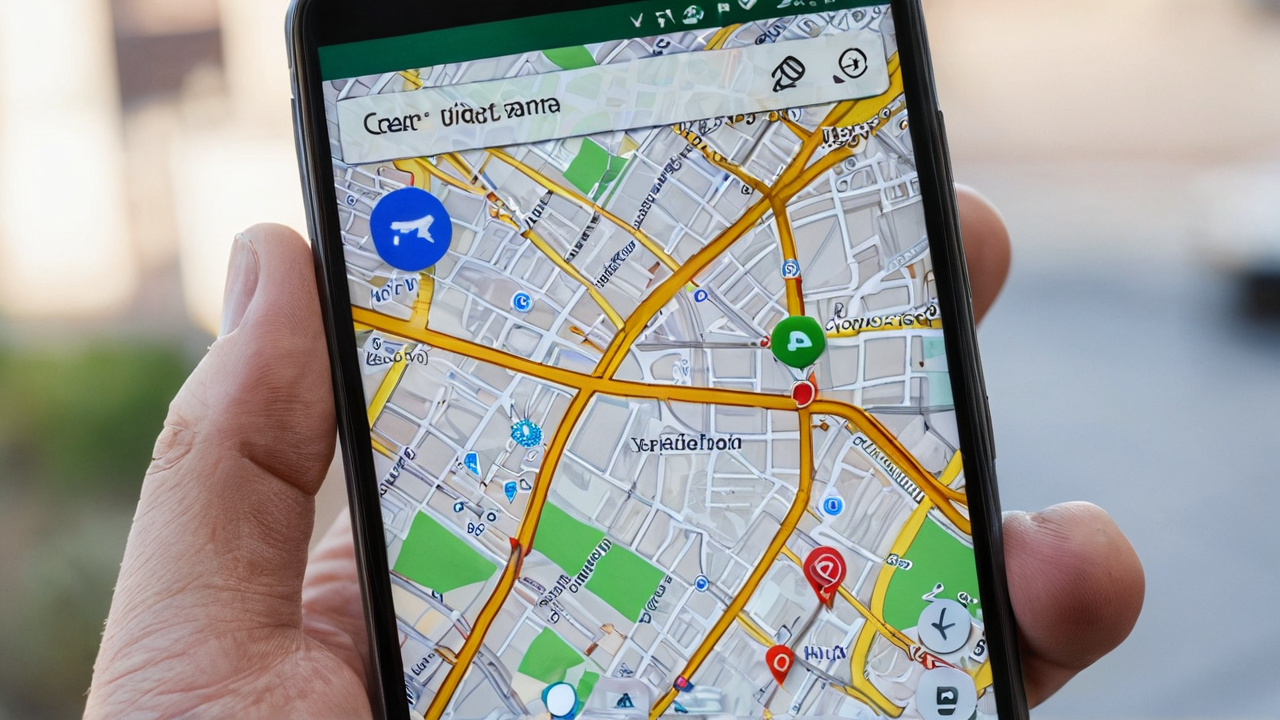
Google Maps has a handful of home screen shortcuts most people never set up, including a live traffic view you can check without opening the app. This guide covers how to add the Google Maps widget on Android, which shortcut is worth the space, and what to do when the Home or Work button does nothing.
How to add the Google Maps widget on Android
- Long-press an empty area on your home screen.
- Tap Widgets.
- Scroll to the Maps section.
- Pick the widget or shortcut you want and drag it onto a home screen page.
Two full widgets show up in that list, plus a set of single-tap shortcut icons. If all you want is the plain Maps icon on your home screen, skip the widget list: open the app drawer, long-press Maps, and drag it out.
The traffic widget: the one to grab first
It shows live traffic on a small map preview, so a two-second glance before you leave tells you whether your usual route is backed up. No app launch, no search screen. If you only add one Maps widget, add this one.
Home and Work shortcuts
Maps ships two saved-location shortcuts by default: Home and Work. Set both addresses once in the Maps app under You > Saved > Labeled, and each shortcut starts directions with a single tap.
I set this up on my mother-in-law’s phone. She used to type the same address into Maps every visit. I showed her the shortcut once, put her most-visited spots on the home screen, and she hasn’t typed an address since. If one shortcut earns its home screen space, it’s this one.
One-tap directions to any destination
Need a shortcut to somewhere that isn’t Home or Work? Search the place in Maps, tap the three-dot menu, and choose Add route to Home screen. You get an icon that jumps straight into turn-by-turn navigation for that spot. It works well for a gym, a regular client site, or a relative’s house.
Google Maps widget not working? Common fixes
Home or Work shortcut won’t start directions
Most of the time the label isn’t set. Open Maps, go to You > Saved > Labeled, and confirm both Home and Work have an address. Then remove the shortcut from your home screen and add it again so it picks up the saved place.
Traffic widget shows a blank or stale map
The widget depends on Maps refreshing in the background. Check that Location is on and that Maps has location permission. On Samsung phones, also open Settings > Battery > Background usage limits and make sure Maps isn’t in the sleeping or deep sleeping list. Battery savers are the usual cause of a widget that only updates when you open the app. If your battery is already draining fast, run our Android Battery Drain Fixer before loosening limits on more apps.
The widget disappeared after an update
Launcher or Maps updates sometimes drop widgets from the home screen. Re-add it from the Widgets list. Your saved places live in your Google account, so nothing is lost.
Update: Galaxy Z Fold 8 Ultra
I have since moved from the S26 Ultra to a Galaxy Z Fold 8 Ultra. The Maps widget and shortcut steps above work the same way on it, and the home screen and Widgets menu look the same as before.
Why the widget beats opening the app
Every shortcut skips the app’s load time and search screen. For traffic checks, that is the difference between a two-second glance and a fifteen-second detour just to decide whether to leave five minutes early.
The same idea works for weather, sports, and news. See our guide to Google app widget shortcuts for the search bar setup, or the Android Tips and Tricks hub for more home screen features worth setting up.
Please support our other platforms it helps support the site, Thanks! Check out our links at Linktree and Dot Cards.