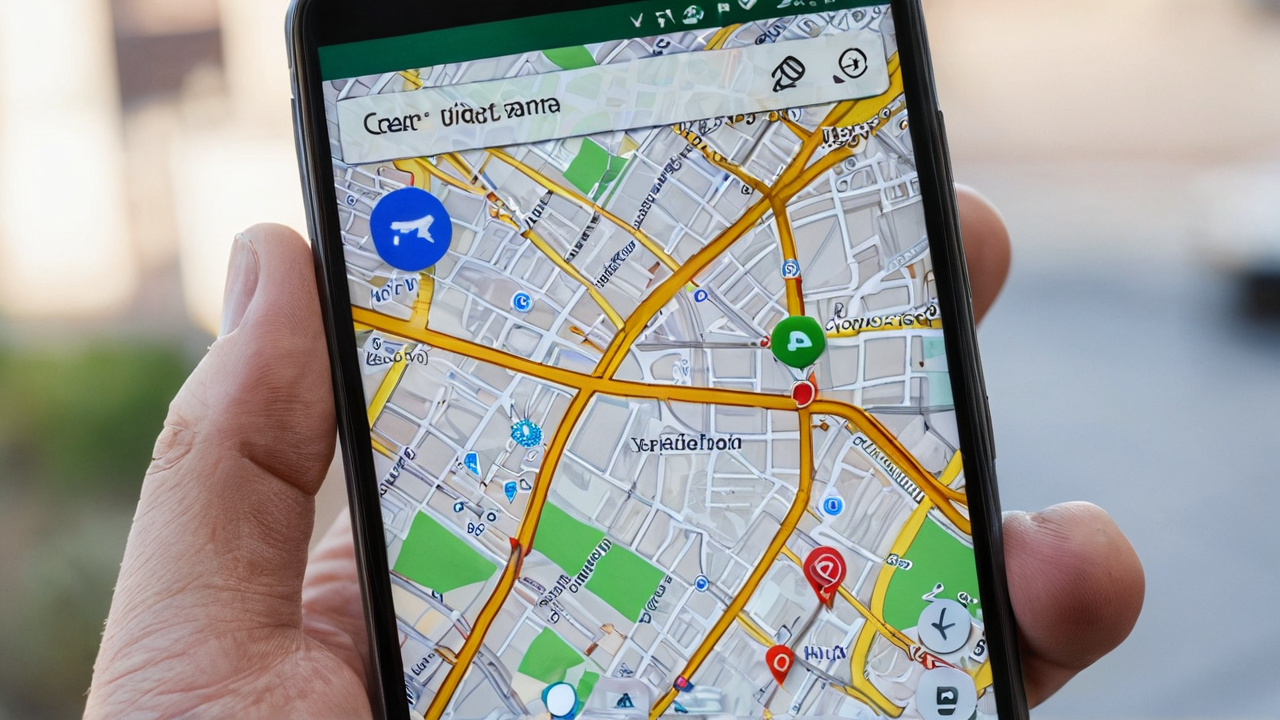
Google Maps has a handful of home screen shortcuts most people never set up, including a live traffic view you can check without opening the app. This guide covers how to add the Google Maps widget on Android, which shortcut is worth the space, and what to do when the Home or Work button does nothing.
How to add the Google Maps widget on Android
Long-press an empty area on your home screen.
Tap Widgets.
Scroll to the Maps section.
Pick the widget or shortcut you want and drag it onto a home screen page.
Two full widgets show up in that list, plus a set of single-tap shortcut icons. If all you want is the plain Maps icon on your home screen, skip the widget list: open the app drawer, long-press Maps, and drag it out.
The traffic widget: the one to grab first
It shows live traffic on a small map preview, so a two-second glance before you leave tells you whether your usual route is backed up. No app launch, no search screen. If you only add one Maps widget, add this one.
Home and Work shortcuts
Maps ships two saved-location shortcuts by default: Home and Work. Set both addresses once in the Maps app under You > Saved > Labeled, and each shortcut starts directions with a single tap.
I set this up on my mother-in-law’s phone. She used to type the same address into Maps every visit. I showed her the shortcut once, put her most-visited spots on the home screen, and she hasn’t typed an address since. If one shortcut earns its home screen space, it’s this one.
One-tap directions to any destination
Need a shortcut to somewhere that isn’t Home or Work? Search the place in Maps, tap the three-dot menu, and choose Add route to Home screen. You get an icon that jumps straight into turn-by-turn navigation for that spot. It works well for a gym, a regular client site, or a relative’s house.
Google Maps widget not working? Common fixes
Home or Work shortcut won’t start directions
Most of the time the label isn’t set. Open Maps, go to You > Saved > Labeled, and confirm both Home and Work have an address. Then remove the shortcut from your home screen and add it again so it picks up the saved place.
Traffic widget shows a blank or stale map
The widget depends on Maps refreshing in the background. Check that Location is on and that Maps has location permission. On Samsung phones, also open Settings > Battery > Background usage limits and make sure Maps isn’t in the sleeping or deep sleeping list. Battery savers are the usual cause of a widget that only updates when you open the app. If your battery is already draining fast, run our Android Battery Drain Fixer before loosening limits on more apps.
The widget disappeared after an update
Launcher or Maps updates sometimes drop widgets from the home screen. Re-add it from the Widgets list. Your saved places live in your Google account, so nothing is lost.
Update: Galaxy Z Fold 8 Ultra
I have since moved from the S26 Ultra to a Galaxy Z Fold 8 Ultra. The Maps widget and shortcut steps above work the same way on it, and the home screen and Widgets menu look the same as before.
Why the widget beats opening the app
Every shortcut skips the app’s load time and search screen. For traffic checks, that is the difference between a two-second glance and a fifteen-second detour just to decide whether to leave five minutes early.
Best Budget EDC Gear Under $50: What’s Actually Worth Carrying
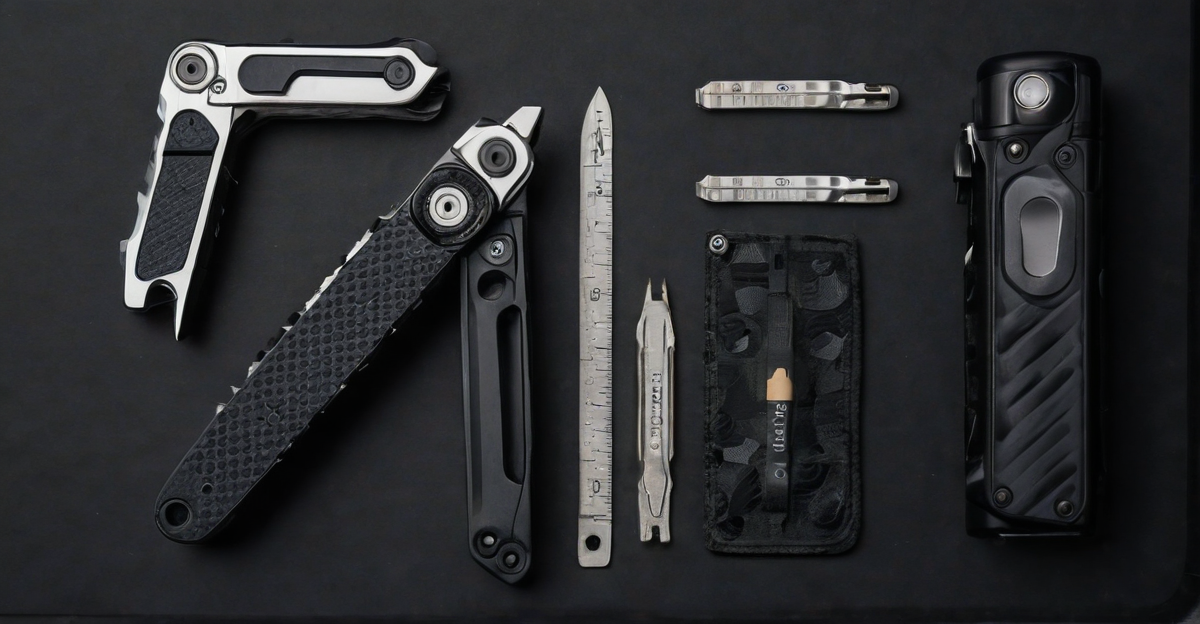
I’ve spent years rotating through budget EDC gear — multitools, knives, flashlights, the whole keychain ecosystem. Most of it ends up in a junk drawer within a month. The stuff that survives has one thing in common: it does its job without you thinking about it. No fiddling, no babying, no worrying about losing a $90 tool at a job site.
This is every piece of budget everyday carry gear I’d actually recommend after real daily use. Everything here is under $50, and most of it is under $25. I’m linking to my full reviews where I go deeper on each category — this page is the overview so you can figure out which type of EDC gear fits how you actually live.
The multitool category under $25 is a minefield. I’ve bought more cheap multitools than I want to admit — most of them are heavy, floppy, and the pliers couldn’t grip a wet noodle. After rotating through the main contenders, the Stanley 12-in-1 is the one I keep going back to. It’s heavy enough to feel like a real tool, the pliers actually bite, and at $17 I keep one in the truck and one in the kitchen drawer.
The Victorinox Spartan is the other answer if you don’t need pliers. Better blade steel, better build quality, and it’ll still be working when your kids graduate. The Gerber Dime splits the difference — spring-loaded pliers small enough for a keychain.
A dedicated folder beats a multitool blade every time — longer edge, better steel, actual ergonomics. The Ontario RAT II is the default recommendation in every EDC community for a reason: AUS-8 steel takes an edge fast, the liner lock is solid, and it’s built like it costs twice the price. I’ve used mine to break down moving boxes, cut paracord, and open enough Amazon packages to qualify as a warehouse worker.
The Opinel No.08 is the wildcard — carbon steel, no lock, completely different philosophy. It’s a slicer, not a pry bar. If your EDC knife is mostly about food prep, whittling, or clean cuts, it’s unbeatable at $15. The CRKT Drifter lands in between with spring-assist opening for around $25.
This is the category where people waste the most money on Amazon garbage. Cheap flashlights either die in a month, lie about lumens, or have a UI designed by someone who’s never used a flashlight in the dark. The Nitecore TIKI is the one that ended my search — 300 lumens, USB-C rechargeable, and a UI that makes sense on the first try. It’s been on my keychain for weeks and I forget it’s there until I need it.
The Streamlight Key Mate is the alternative if you want zero complexity — single mode, coin cell battery, always works. And the Wuben E7 splits the difference with decent output and a magnetic tail cap.
No lab. No affiliate-farm “research.” I bought these with my own money and carried them in rotation — truck, pocket, keychain — for at least two weeks each before writing about them. I’m a project manager by trade, not a gear reviewer, which means my testing is boring and practical: opening packages, tightening screws, cutting zip ties, finding my way to the breaker panel when the power goes out. If something failed at any of those, it didn’t make the list.
I also check what the communities say. r/EDC, r/BudgetBlades, and r/flashlight are brutally honest about what holds up and what doesn’t. If Reddit hates it, I don’t recommend it.
What I skip (and why)
Tactical pens. They write worse than a $2 Pilot G2, the “glass breaker” tip has never broken glass for anyone outside a YouTube video, and TSA flags them constantly. Save the $30.
“Survival” card tools. Those credit-card-sized multi-tools with a compass, magnifying glass, and saw edge? I’ve owned three. Zero of them performed a single useful function. They exist to be photographed flat-lay style, not used.
Amazon bundles. Any listing that shows 15 EDC items in a neat case for $35 is selling you $5 worth of zinc alloy in a $3 case. The individual items can’t do anything the real tools on this page handle without effort.
Budget EDC gear FAQs
What EDC gear can I fly with?
Flashlights and bladeless tools like the Kershaw PT-2 are always fine. Knives and multitools with blades go in checked luggage only. I’ve personally flown with the PT-2 and Nitecore TIKI in my carry-on without issues.
Is budget EDC gear worth it compared to premium?
For daily convenience tasks — yes. A $25 Victorinox Spartan opens boxes and tightens screws the same as a $100 Leatherman. Premium matters when you’re using pliers daily on a job site or need a blade that holds an edge through 200 cuts without resharpening. Most people don’t.
What’s the one piece of EDC gear everyone should carry?
A keychain flashlight. You don’t realize how often you need one until you have one — finding things under car seats, checking breaker labels, walking the dog after dark. The Nitecore TIKI is my pick. Costs less than lunch.
Tooled Out is reader-supported. Some links on this page are affiliate links — if you buy through them, I earn a small commission at no extra cost to you. I only recommend gear I’ve personally tested and would actually carry. Full disclosure on our Contact page.
About the author: John Corcione has managed IT and telecom projects for 20 years, which means he’s field-tested more gear than he’d like to admit — some great, most forgettable. Tooled Out is where he writes up what’s worth buying. Say hi at dot.cards/gigawerx or linktr.ee/gigawerx.
Most “best MCP servers” lists are written by people who installed three of them for a blog post. I run 19 of them daily across three different AI agents on the same machine — Claude Code, OpenClaw, and Hermes. Some of them changed how I work. A few of them replaced entire tools I was paying for. And a couple of them are dead weight I haven’t gotten around to removing yet.
This isn’t a ranked listicle. It’s what I actually use, why I use it, and what it replaced. If you’re setting up MCP servers for the first time, start with the ones at the top — they’ll cover 80% of what you need.
What MCP servers actually are (30-second version)
MCP stands for Model Context Protocol. It’s a standard Anthropic released that lets AI tools — Claude Code, Cursor, VS Code with Copilot, whatever — talk to external services through a common interface. Think of it like USB for AI: one connector, many devices.
Before MCP, you had to write custom integrations every time you wanted your AI agent to talk to GitHub, or your file system, or a search engine. Now you drop in a server config, and the AI can use those tools directly. The servers run locally on your machine (stdio) or remotely (HTTP). Most of the ones I use are local.
Firecrawl — replaced my manual web research
This is the one I’d install first if I could only pick one. Firecrawl gives your AI agent the ability to search the web, scrape pages, and pull back clean markdown instead of raw HTML. I run it locally in Docker on port 3002, and it’s the default search tool for Claude Code, my OpenClaw gateway, and Hermes.
What it replaced: manually Googling things and pasting content into prompts. That sounds small, but when you’re doing keyword research, competitor analysis, or just trying to answer “what are people actually writing about this topic,” having the AI do its own web research in the background saves real time. I used it today to research this article.
GitHub MCP — replaced the browser for PR and issue work
The official GitHub MCP server lets Claude Code create branches, open pull requests, comment on issues, and search code across repos without leaving the terminal. I use it mostly for managing my open-source projects and Chrome extensions.
What it replaced: switching to the browser every time I needed to check a PR, review comments, or look at issue history. The context switch alone was killing my flow. Now Claude reads the PR, reviews the diff, and posts comments — all from the same session where I’m writing the code.
Filesystem MCP — the boring one that everything depends on
Anthropic’s official filesystem server gives AI agents controlled access to read and write files on your machine. It’s not exciting. It’s also the one that breaks everything else if it’s not running.
I use it across all three agents. OpenClaw and Hermes both need it to read project files, write outputs, and manage their own configs. Claude Code has built-in file access, but the MCP version gives the other agents the same capability with the same permission model.
Google Search Console MCP — replaced logging into GSC
This one connects directly to the Google Search Console API. I can ask Claude “what keywords is tooledout.com ranking for” and get back real data — impressions, clicks, position, CTR — without opening a browser tab.
What it replaced: logging into Search Console, setting date ranges, clicking through filters, exporting CSVs. Now I get the same data conversationally. I also use the quick-wins detection feature to find keywords where I’m ranking on page two that could move to page one with a content update. That used to be a 30-minute manual process.
Brave Search — the backup search engine
I run Brave Search alongside Firecrawl. Firecrawl is the primary, but Brave gives me a second source when I need to cross-reference results or when Firecrawl’s scraping gets blocked by a particular site. It also handles image and news searches better than Firecrawl does right now.
What it replaced: nothing directly — it’s a redundancy layer. But having two search sources means my AI agents don’t hit a dead end when one service is down or rate-limited. That happens more often than you’d think.
Memory / Knowledge Graph — replaced my notes files
This one stores entities and relationships in a local graph database. I use it to give my agents persistent memory across sessions — project context, user preferences, things I’ve told them before that I don’t want to repeat every time I start a new conversation.
What it replaced: a messy collection of markdown files and CLAUDE.md instructions that I had to manually update. The graph handles it automatically now. When I tell Claude something about a project, it stays remembered.
YouTube Transcript — research without watching
Pulls transcripts from any YouTube video. I use this constantly for content research — if someone published a 45-minute tutorial on a topic I’m writing about, I can pull the transcript and have Claude summarize the key points in 30 seconds instead of watching the whole thing.
What it replaced: watching videos at 2x speed with a notepad open. I still watch the good ones. But for research purposes, the transcript gets me what I need faster.
Desktop Commander — controls my actual computer
Desktop Commander lets Claude interact with my actual Windows desktop — take screenshots, click buttons, type into applications, manage processes. It’s the bridge between “AI that writes code” and “AI that actually uses my computer.”
I use it for browser automation, testing UI changes, and managing long-running processes. It’s the one that makes non-technical people’s eyes go wide when they see it working — Claude literally driving the mouse and keyboard.
vidIQ — YouTube analytics without the dashboard
I run three YouTube channels. vidIQ’s MCP server lets me pull channel stats, keyword research, trending video data, and competitor analysis directly into my Claude sessions. Instead of jumping between the vidIQ dashboard, YouTube Studio, and my content calendar, I get all of it in one conversation.
What it replaced: the vidIQ browser extension workflow. I still use the extension for quick checks, but for actual content planning sessions — “what should my next Gigawerx video be about” — the MCP server is faster because Claude can cross-reference the data with my existing content and spot gaps.
MCP servers I’d skip
Don’t install everything you find on GitHub. Every MCP server you add increases startup time and token overhead — your AI agent has to load the tool descriptions for every connected server at the start of each session. I learned this the hard way by connecting 25+ servers to OpenClaw and watching it slow to a crawl.
Start with three to five that match what you actually do. If you write code, start with GitHub and Filesystem. If you do content, start with Firecrawl and YouTube Transcript. Add more only when you hit a real gap, not because a Reddit post said it was cool.
How to set up MCP servers (the short version)
If you’re using Claude Code, the setup is one command: claude mcp add server-name. For Docker-based servers like Firecrawl, you run the container first and then point the MCP config at it. For everything else, it’s usually an npx command or a path to a local binary in your .claude/settings.json file.
The config file that ties it all together lives at ~/.claude/settings.json for global servers or .claude/settings.json in your project directory for project-specific ones. Each entry specifies the command to run, any arguments, and environment variables like API keys.
One thing nobody tells you: if a server crashes or hangs, it can block your entire Claude session. Keep your server list lean and test each one individually before trusting it in a real workflow.
FAQ
What are the best MCP servers for beginners?
Firecrawl (web search), GitHub MCP (if you code), and Filesystem. Those three cover most use cases and are all well-documented. Add more after you’ve used those for a week and know what’s missing.
Do MCP servers cost money?
Most are free and open source. Some — like Firecrawl — offer a hosted cloud version with a paid tier, but you can run it locally in Docker for free. The only cost is the machine running them, which is your computer.
How many MCP servers should I run at once?
Five to ten is the sweet spot for most people. Every server adds token overhead to your AI sessions because the agent has to load each server’s tool descriptions. Past 15 or so, you start noticing slower response times and higher token usage.
Can I use MCP servers with tools other than Claude Code?
Yes. MCP is an open standard. Cursor, VS Code with GitHub Copilot, Windsurf, Cline, and several other tools support it. The config format varies slightly by tool, but the servers themselves work the same way.
If you would like to write as a guest onour site Contact Us
Note Here is a resource that i use to find free or very close to free MCP servers as well as custome custom ones and of course please use due diligence and at your own risk. MCPServers.org Free Querry
If this article helped you out, consider supporting the site. Every visit, share, and follow keeps independent content like this going. Check out our other platforms and ways to connect:
I run three AI agent content pipeline operations off one desktop: a faith YouTube channel with over 700 subscribers, two tech channels, and a blog I’m rebuilding right now. My AI agent content pipeline handles the heavy lifting on all three — image generation, video assembly, publishing.
None of it touches a paid API for the generation itself. That part runs local, on a $400 GPU I already owned. But the orchestration layer — the part that actually ties the pipeline together — went through a real shift this year. It’s worth talking about, because most people are still writing about the tool I just moved away from.
My AI agent content pipeline started on n8n
I went in-house on image generation about two years ago after finding a YouTube tutorial that showed how to run it locally. Purely a cost decision. I’d just built a new rig with an RTX 3060 Ti sitting in it, and I wanted to actually use that GPU instead of paying someone else to run the same job on their hardware.
Every tool out there — KIE, Nano Banana, take your pick — wants to charge you per-credit for image and video generation. Once you’re producing at any real volume, that adds up fast. Running it on a card I already owned made more sense than feeding a credit meter.
n8n was the piece that tied the whole thing together — the node-based workflow tool that watches for triggers, calls other tools in order, and hands off the output. It’s a solid platform and I got real use out of it in the early version of this setup.
But I’ll be straight about where things stand now: n8n isn’t what’s showing up in my own feed anymore. My AI and dev consumption these days is agent tooling and IDE-native workflows, and n8n has quietly become old news in that conversation. It’s not that it stopped working. It’s that the center of gravity moved somewhere else, and I moved with it.
What an agent-built content pipeline actually looks like
Instead of building a node graph in n8n to define a workflow, I’m now building my AI agent content pipeline conversationally, with Claude Code and Claude Cowork doing the orchestration work n8n used to do. The difference: the “workflow” is a written skill file I can hand to the agent, not a canvas of connected boxes.
Need a new pipeline step? I describe it once, the agent builds and saves it as a reusable skill, and next time I just invoke it by name. No dragging nodes, no debugging a webhook that silently stopped firing three weeks ago.
The practical difference matters more than it sounds. n8n workflows live inside n8n. Agent skills live in plain files I can read, edit, and version like anything else in a project. When something breaks, I’m reading a markdown file and a script, not clicking through a visual graph trying to find which node stopped talking to the API.
Two channels, two different pipelines
I’m running this agent content pipeline across two different YouTube operations right now, and they don’t work identically.
Grace Note Inspirations, my faith-content channel, generates scenic still images locally through ComfyUI and Magica, adds motion to the hook frame, drops in TTS narration, and assembles the final cut with FFmpeg. The whole thing runs scripted end to end, no manual video editing.
My tech channel, Gigawerx, went a different direction. Local image generation stays the same, but the assembly step runs through Revid instead of doing it all locally — stitching captions, motion graphics, and audio together locally was eating more of my time than it was saving.
That’s the honest version. Not every piece of the pipeline stays local forever, and not every piece runs through the same orchestration layer. Some steps get automated locally, some get handed off, and the deciding factor is usually what’s actually eating my time, not ideology about running everything one specific way.
The featured images on my blogs go through the same ComfyUI setup — generate locally, upload straight to WordPress media via the REST API, no stock photo subscriptions, no per-image API charges. That part hasn’t changed. What changed is what’s calling the shots to make it happen.
Why local generation still wins on cost
The math is what convinced me on the image and video side, and it hasn’t changed regardless of what’s doing the orchestrating. A GPU that’s already sitting in your case doing nothing most of the day costs zero dollars per generation once it’s set up. API calls don’t stop costing money just because you’re not watching the bill.
I’ll be honest — I never sat down and ran the exact head-to-head comparison, dollar for dollar. What I know is that the credit-based tools bill per generation and per re-generation, and I re-render things constantly while dialing in a shot.
Local, that cost disappears entirely; the only thing spent is time and whatever the electricity actually runs. If you’re at the volume I’m producing at — multiple channels, weekly output — even a rough gut check says the credits would’ve outpaced the cost of the GPU a long time ago.
Where local AI hits its limits
Local isn’t the answer for everything, and I’m running into that firsthand right now. The 3060 Ti has 8GB of VRAM, which was plenty for the model I started with two years ago and is starting to feel tight against newer, heavier models.
That’s the real ceiling with going local: the hardware you bought for the job you had is not automatically the hardware for the job you have now. At some point that’s a GPU upgrade decision, not a software one.
Frontier-model reasoning, complex multi-step agent work, and anything needing the absolute best output quality still goes to a hosted model. That’s where Claude Code does the actual engineering on my content pipeline — that’s not a job for a local model on consumer hardware, at least not yet.
The split that’s worked for me: local for anything repetitive, high-volume, or where “good enough” output is genuinely good enough — image generation, TTS, routine text tasks. Hosted, agent-driven tools for anything that needs real reasoning, judgment, or where quality can’t slip.
Building your own AI agent content pipeline
I wouldn’t start a new content pipeline in n8n today. Not because it’s bad, but because the tooling around agent-based orchestration has moved fast enough that building workflows as skill files is the more current, more maintainable path.
If you’re already deep in an n8n setup that works, that’s not a reason to rip it out. But if you’re starting from zero, look at where agent tooling is now before you invest time in a node-graph platform that’s already past its peak.
Either way, get the local generation piece sorted first. That’s the part that actually saves money, regardless of what’s orchestrating it. Confirm you can generate an image through ComfyUI’s own interface before wiring anything else to it.
Get one simple automated step working end to end before you add scheduling, multi-step chains, or anything fancy. The orchestration layer is replaceable. The habit of building things one working piece at a time isn’t.
The tools aren’t the hard part. Knowing when to walk away from one you’ve already invested time in is.
If this article helped you out, consider supporting the site. Every visit, share, and follow keeps independent content like this going. Check out our other platforms and ways to connect:
Sprint Planning With No Historical Data:: Last week I published a free sprint capacity calculator and shared it on r/scrum. The reception was — let’s call it educational. The top comment was “Please, don’t.” But buried in the pushback was a genuinely good debate with a commenter who knew his stuff, and it surfaced a question most agile content skips right past:
What do you do before the data exists?
The Two Schools of Sprint Planning
There are two legitimate schools of thought on Sprint Planning, and most arguments about agile tooling are really these two talking past each other.
The capacity school — the one most Fortune 500 delivery teams actually live in — says: figure out your available hours, subtract what you know you’ll lose (PTO, ceremonies, interrupt work), commit accordingly, then inspect and adapt. It’s estimation up front, correction in flight.
The flow school says: stop estimating entirely. Slice work into small, similar-sized pieces, measure how long items actually take to move from start to done (cycle time), and let statistics do the forecasting. With enough data, you can say “we finish 85% of items within 6 days” with real confidence — no planning poker required. This is the world of probabilistic forecasting, Monte Carlo simulation, and the #NoEstimates crowd.
Here’s the part both sides get right and neither likes to admit: the flow school has the better math, and the capacity school has the better starting point.
The Flow School’s Case Is Strong — With One Prerequisite
My r/scrum critic argued that statistical forecasting lets you reforecast “on a dime, for a dime” — cheaply and continuously — and he’s right. Once a team has roughly 20 completed stories of clean cycle-time data, you can model how work actually flows through the team, including the stuff capacity math never sees: wait times, handoff delays, context-switching tax. His sharpest point was that a 20% defect load doesn’t just cost 20% of capacity — the stop-start disruption on complex work adds its own tax on top. Twenty years of watching senior engineers get “quick question”-ed to death says he’s correct.
He’s also right that story points hide dynamics that matter. Thirteen one-point stories and one thirteen-point story look identical in a capacity model. In real life they behave nothing alike — the small slices ship, generate feedback, and let the team adapt scope; the big rock sits at 80% done until the last day of the sprint, radiating false confidence.
So if your team has clean flow data, small-sliced work, and the discipline to keep both — use probabilistic forecasting. Sincerely. It’s better.
Sprint Planning: Welcome to Day One
Here’s the scenario the flow school’s answer doesn’t cover, and it’s the scenario I’ve been handed more times than I can count across telecom and banking programs:
New project. New team — three contractors who started Monday, two internal folks pulled off other work. No cycle-time history, because the team didn’t exist last month. No story archive. A director who needs a commitment for the steering deck by Thursday. And two people already have PTO booked over the sprint.
“Collect 20 stories of cycle-time data first” is not an answer available to you. That data is 4–6 weeks away on a good team. Meanwhile, sprint one still has to be planned by somebody, Thursday still exists, and the honest options are: a number plucked from the air, or a number that at least accounts for the hours you demonstrably won’t have.
That’s the entire job of a capacity check. It’s not a forecasting model and shouldn’t pretend to be. It answers one question: given who’s actually here and what actually eats their time, how much less should we commit to than we’d like to? A rough answer to that question beats a rigorous answer to a question you can’t ask yet.
Sprint Plnning: The Handoff Point: When to Graduate
The honest position isn’t capacity math forever — it’s capacity math until the data exists, then graduate. In practice:
Sprints 1–3: Capacity-based planning. Gross hours minus absences, ceremonies, and an interrupt buffer. Use a starting heuristic for points if you have no velocity. Commit conservatively — a new team that beats its commitment builds trust; one that misses builds a reputation. My calculator does this math in about a minute, but a spreadsheet works too. The tool isn’t the point; subtracting reality from optimism is the point.
Sprints 3–6: Start tracking two things per work item: start date and done date. That’s it. You’re quietly building the cycle-time dataset the flow school needs. Keep doing capacity checks for planning, but start comparing what the math predicted against what actually happened. The gap is your team’s personality showing up in numbers.
Sprint 6 and beyond: You now have 20+ completed items. If your organization lets you, shift the forecasting weight onto throughput and cycle time, slice work smaller, and let the capacity check shrink to what it always should have been — a PTO sanity check during planning week. If your organization still demands point commitments for the steering deck, run both and translate. That bilingual skill — flow math for the team, point commitments for the PMO — is half of what a good delivery lead does in a large org anyway.
Sprint Planning: What the Argument Is Actually About
The r/scrum debate was never really about my calculator. It’s about whether you plan for the team you have or the team the books describe. Flow forecasting assumes a team mature enough to slice small, track clean, and hold the discipline for months. Plenty of teams get there, and it’s worth getting there. But every one of them had a sprint one — staffed by strangers, measured by nothing, and due Thursday.
Plan the first sprints with the arithmetic you have. Collect the data as you go. Graduate when the data’s ready. And if someone tells you the arithmetic is beneath the state of the art, they’re probably right — and sprint one still has to be planned by Thursday.
If this article helped you out, consider supporting the site. Every visit, share, and follow keeps independent content like this going. Check out our other platforms and ways to connect:
If you’ve ever committed to a sprint and then watched it fall apart by day three, the problem usually isn’t the team — it’s that the capacity number going into planning wasn’t realistic. This sprint capacity calculator (built on principles from the official Scrum Guide) gives you an adjusted figure in under a minute, accounting for PTO, ceremony overhead, and your bug/interrupt buffer before you pull a single story.
No account, no email, no export fees. Just enter your team numbers and get a defensible capacity estimate you can paste directly into your planning doc.
1. Team & Sprint Setup
All contributors estimating stories
Excludes meetings (~6h is typical)
Use 0 if no history yet
2. Planned Absences / PTO
3. Sprint Overhead
Planning + review + retro + grooming
Reserve for unplanned work
Sprint Capacity Results
—
Adjusted team hours
—
Recommended story points
—
Capacity risk
How Sprint Capacity Is Calculated
The Sprint Capacity Calculator uses a four-step formula that mirrors how most experienced Scrum Masters run planning math manually:
Gross capacity — team size × sprint days × focus hours per day. Focus hours (not clock hours) is the key input here; 6 hours is the realistic number for most knowledge workers once you strip out context-switching and admin.
Absence deduction — planned PTO and holidays removed in full-day equivalents.
Ceremony overhead — planning, review, retro, and grooming hours multiplied by team size. Consistently underestimated — on a two-week sprint it can eat 8–12 hours per person.
Bug and interrupt buffer — a percentage of net hours reserved for unplanned work. 15–20% is standard for a mature team; higher if you’re supporting production.
Story Points vs. Hours: How the Recommendation Works
If you enter a historical velocity, the tool scales your story point recommendation proportionally to your capacity change. If your usual 10-person team is running at 70% capacity this sprint, your point target scales down accordingly rather than staying at the full velocity number. If you’re a new team with no history, it uses a 5-hours-per-point heuristic as a starting calibration point.
Common Mistakes This Calculator Catches
Using headcount as capacity. 8 people × 10 days is not 80 person-days of dev output. Ceremonies and support load reduce that fast.
Ignoring partial absences. A half-day of PTO still disrupts flow for the surrounding hours. Model it.
Zero buffer for unplanned work. Production incidents, clarification threads, and PR review cycles eat capacity. If you aren’t budgeting for it, you’re overcounting.
Planning to velocity instead of capacity. Velocity is an average at full capacity. If this sprint has 80% capacity, your point target should reflect that.
Frequently Asked Questions About Sprint Capacity Planning
What is sprint capacity and how is it different from velocity?
Sprint capacity is the total amount of work your team can realistically take on in a given sprint, measured in hours or story points, after accounting for absences, ceremonies, and interrupt work. Velocity is a historical average of how many story points your team has completed across past sprints at full capacity. The two are related but not the same — if this sprint has 80% of your usual capacity due to PTO, your sprint capacity is lower, but your historical velocity hasn’t changed. A good sprint capacity calculator adjusts your point commitment to match your actual available hours, not your best-case average.
How many story points should a team complete per sprint?
There’s no universal number — it depends entirely on your team size, sprint length, and how your team calibrates story points. A common starting heuristic for a new team is roughly 5 hours of focused work per story point, so a 5-person team with 6 focus hours per day over a 10-day sprint has around 300 gross hours, which translates to roughly 40–50 points at that calibration. Once you have 3–5 sprints of data, use your actual velocity instead of the heuristic. The most important thing is internal consistency — your story point scale only needs to make sense within your own team.
What percentage of sprint capacity should be reserved for bugs and unplanned work?
The standard guidance is 15–20% for a mature product team. New teams or teams supporting an active production system often need 25–30% because the interrupt rate is higher and harder to predict. If you’re consistently burning through your buffer and pulling stories to the next sprint, increase the percentage rather than pressuring the team to absorb the overrun. Tracking actual interrupt hours over a few sprints gives you a data-backed buffer percentage specific to your context, which is more accurate than any rule of thumb.
Should ceremony time count against sprint capacity?
Yes — and most teams underestimate how much ceremony eats into delivery time. On a standard two-week sprint, sprint planning (2h), daily standups (10 × 15min = 2.5h), sprint review (1h), retrospective (1h), and backlog grooming (1–2h) add up to 7–8.5 hours per person. On a 5-person team, that’s 35–42 person-hours per sprint that aren’t available for story work. Leaving ceremony time out of your sprint capacity calculator is one of the most common reasons teams consistently miss their sprint goals.
If this article helped you out, consider supporting the site. Every visit, share, and follow keeps independent content like this going. Check out our other platforms and ways to connect:
Fire TV Stick 4K vs Roku Express 4K: Which Streaming Stick Wins in 2026?
I own two Fire TV Sticks and a Fire TV Cube. I use them every day. So when people ask me Fire TV Stick 4K vs Roku, I have opinions — but I also have a bias I should be upfront about. I’ve lived in the Amazon ecosystem for years, and I genuinely like it. That said, Roku has real strengths that matter depending on what you care about.
This isn’t a spec-sheet showdown. It’s what actually matters when you’re picking a $30-50 streaming stick for your living room, bedroom, or wherever you watch stuff.
If you’re already in the Amazon ecosystem — Prime membership, Alexa speakers, Ring doorbell — get the Fire TV Stick. Everything talks to everything. If you want the cleanest interface with the least ads and the most app options, Roku wins that fight.
Both stream 4K. Both cost under $50. Both do the job. The difference is in the details.
What I actually like about the Fire TV Stick 4K
The Alexa integration is the killer feature for me. I tell it to play something, it plays. I ask it what time it is while a show is running, it answers without interrupting playback. My Fire TV Cube takes this further — full hands-free voice control without touching the remote. I’ve got two Sticks in the bedrooms and the Cube in the living room, and the experience is consistent across all three.
The Fire TV Stick 4K supports Dolby Vision, HDR10+, and Dolby Atmos. That’s the full HDR and audio format lineup. Roku Express 4K+ handles HDR10 and HDR10+ but skips Dolby Vision entirely. If your TV supports Dolby Vision, that gap matters — it’s a visible difference in contrast and color on content that supports it.
Wi-Fi 6 on the Stick 4K Plus means less buffering if you’ve got a newer router and multiple devices on the network. The 4K Max goes further with Wi-Fi 6E. My house has a Wi-Fi 6 router with two kids streaming, security cameras running, and my work laptop connected. The Fire Sticks handle it without buffering. Can’t say the same for the old Roku I had years ago, though that was a different generation.
Where Roku actually beats Fire TV
Roku’s app library is bigger. Period. They have more free channels and a more open platform for smaller streaming services. If you use niche apps or want maximum free content, Roku has an edge.
The Roku interface is also cleaner. Fire TV’s home screen pushes Amazon content hard — recommended shows, Prime Video originals, sponsored tiles. You can work around it, but it’s there. Roku’s home screen is basically your app list. Less noise.
Roku also plays nice with every ecosystem. Works with Alexa, Google Assistant, and Apple AirPlay 2. The Fire TV Stick locks you into Alexa. If your smart home runs on Google Home, that’s a real friction point.
The $10 price difference between Fire TV Stick 4K vs Roku Express 4K+ gets you Dolby Vision, Dolby Atmos, and Wi-Fi 6. For most people that’s worth ten bucks.
Which Fire TV Stick should you actually buy?
Amazon has three 4K sticks right now and the naming is confusing. Here’s the short version.
The Fire TV Stick 4K Select ($22-40) is the budget pick. Basic 4K streaming, no Wi-Fi 6, but gets the job done if you just want Netflix and Prime Video in 4K without spending much.
The Fire TV Stick 4K Plus (~$50) is the sweet spot. Wi-Fi 6, full Dolby Vision and Atmos, snappy performance. This is the one I’d tell most people to buy.
The Fire TV Stick 4K Max (~$60) adds Wi-Fi 6E, 16GB storage (double the others), and the ambient screensaver mode. Worth it if you want room for more apps or your router supports 6E. Otherwise save the $10.
Upgrade your setup: pair it with the Fire TV Soundbar
Here’s a move that most people don’t think about. Your TV’s built-in speakers are terrible. Every TV. Even expensive ones. Pairing a Fire TV Stick with the Amazon Fire TV Soundbar (~$79-119) gives you a complete streaming setup for under $170.
The Fire TV Soundbar is a 2.0 channel bar with DTS Virtual:X and Dolby Audio. It’s not going to replace a proper home theater system. But it’s a massive upgrade over built-in TV speakers — dialogue gets clearer, bass actually exists, and movies sound like movies instead of someone talking through a phone speaker.
The integration is seamless if you’re already using a Fire TV Stick. One remote controls both. Audio settings show up right in the Fire TV menu. No fiddling with separate remotes or HDMI-CEC headaches. That’s the advantage of staying in one ecosystem — stuff just works together.
If you want Dolby Atmos from the soundbar, you’ll need the Fire TV Soundbar Plus ($150-250), which has a built-in subwoofer and proper 3.1 channel separation. But for most bedrooms and mid-size living rooms, the standard $79-119 bar is plenty.
The remote situation
Small thing that matters more than you’d think. The Fire TV Alexa Voice Remote has backlit buttons that light up when you pick it up in a dark room. The Roku Express remote doesn’t. After fumbling with a non-backlit remote at midnight trying not to wake up my wife, I appreciate this more than any spec on paper.
Both remotes have dedicated app buttons (Netflix, Disney+, etc.) that you can’t customize. Mildly annoying on both sides. The Fire TV remote also has two programmable shortcut buttons, which Roku lacks.
What about ads?
Both platforms show ads. Fire TV shows more of them. The home screen is part content launcher, part billboard. Amazon pushes Prime Video originals, sponsored app recommendations, and “featured” content you didn’t ask for.
Roku shows ads too, but they’re more contained — usually a banner on the right side of the home screen. Less intrusive. If ad-heavy interfaces drive you crazy, Roku wins this round.
Personally, I got used to Fire TV’s layout. I launch my apps and ignore the rest. But I get why it bothers people.
Bottom line: Fire TV Stick 4K vs Roku in 2026
I’m biased and I said so up front. I own three Fire TV devices and I’d buy them again. The Alexa integration, Dolby Vision support, and the way everything connects across my Amazon setup makes daily use effortless. The Fire TV Stick 4K Plus at $50 is the one I recommend.
But if you don’t care about Alexa, want a cleaner interface, or your smart home runs on Google — the Roku Express 4K+ at $40 is a solid pick. No Dolby Vision is the main trade-off, and whether that matters depends on your TV.
Either way, you’re spending less than a dinner out for a device you’ll use every single day. Hard to go wrong.
Disclosure: Tooled Out may earn a commission from purchases made through links on this page. This doesn’t affect our recommendations or the price you pay. We only link products we’d actually suggest to a friend.
Galaxy Buds 3 Pro Worth It in 2026? Price, Specs & Verdict
The Galaxy Buds 4 Pro just dropped at $250. Samsung’s previous flagship earbuds are sitting at $179 on Amazon right now. So is the Galaxy Buds 3 Pro worth it in 2026, or should you just pay up for the newer model?
I’ve been watching this price drop for weeks. The Buds 3 Pro launched at $250 a year ago, and Samsung’s own successor just pushed them into clearance territory. That makes this a real decision point for anyone shopping wireless earbuds on a budget.
Quick spec rundown. The Buds 3 Pro pack a 2-way speaker setup with a dedicated tweeter and woofer in each bud. You get 6 hours of listening with ANC turned on, 7 hours with it off, and the charging case stretches that to 26-30 hours total. They’re IP57 rated, which means sweat and rain won’t kill them, but don’t take them swimming.
Bluetooth 5.4 keeps the connection solid. Samsung’s Adaptive ANC adjusts noise cancellation based on your environment, and there’s a transparency mode that lets outside sound through when you need it. 360 Audio works with compatible Samsung phones for spatial sound, though honestly most people won’t notice the difference on Spotify.
The fit is canal-style with silicone tips in three sizes. They sit flush and don’t stick out of your ears like some competitors. Comfortable for a couple hours straight, though fit is personal — some people love canal-style buds, others can’t stand them. Try before the return window closes.
Is the Galaxy Buds 3 Pro worth it for the sound?
Sound quality is where these earn their price. The dual-driver setup delivers clear mids and highs without the muddy bass that cheaper earbuds lean on to sound “premium.” Bass is there, it just doesn’t overpower everything else.
Dolby Atmos support adds some width to the soundstage on Samsung devices. On a non-Samsung phone, you lose some of the AI sound optimization features, but the core audio quality holds up fine. I’d put them ahead of most earbuds under $200 for music clarity.
Call quality is decent but not perfect. Multiple reports mention the mic cutting out mid-call or requiring a re-seat in the case to fix. Samsung pushed firmware updates to address it, and most users say the issue settled down after the first few patches. Still worth mentioning if calls are your primary use.
ANC performance in the real world
The noise cancellation on the Buds 3 Pro is genuinely good. Not Bose 700 good, but competitive with the AirPods Pro 2 in most environments. Coffee shop chatter, office HVAC hum, airplane cabin noise — it handles all of that without making your ears feel pressurized.
Ambient mode works well too. You can carry on a conversation at a register or hear traffic without pulling the buds out. The switch between ANC and ambient is smooth, no jarring audio pop.
Galaxy Buds 3 Pro vs Buds 4 Pro: the $70 question
Here’s where the Galaxy Buds 3 Pro worth it question gets interesting. The Buds 4 Pro improved the driver setup with a planar tweeter and slightly better ANC. Sound quality is better, but it’s not a different league. More like going from a B+ to an A-.
If you own a Galaxy S23 or newer, the Buds 4 Pro unlock features like UHQ lossless audio and head-gesture controls. Those are real perks. If you’re on an older Samsung phone or any other Android device, most of those extras don’t apply to you. You’re paying $70 more for incremental improvements you might not even hear.
At $179 vs $250, the Buds 3 Pro are the smarter buy for most people. The sound is still excellent, the ANC is competitive, and that $70 stays in your pocket.
What about compared to AirPods Pro 2?
If you’re on iPhone, stop reading. Get the AirPods Pro 2. The ecosystem integration alone makes it the obvious pick.
If you’re on Android, the Galaxy Buds 3 Pro win on value. Similar ANC performance, better price, and Samsung’s Galaxy AI features work if you’re in their ecosystem. The AirPods Pro 2 work on Android but lose most of their smart features. At that point you’re paying Apple tax for hardware that functions like basic Bluetooth earbuds.
Known issues to watch for
I want to be straight about the problems. Early production batches had quality control issues — uneven plastic gaps, charging pin burn marks, and silicone ear tips that tore too easily when swapped. Samsung paused shipping briefly to fix it.
Most of the hardware defects traced back to units manufactured before October 2024. If you’re buying now in 2026, you’re getting later production runs where these issues were resolved. Check the serial number date if buying refurbished — avoid pre-October 2024 units.
The Bluetooth disconnect-during-calls bug was a firmware issue. Updates fixed it for most users, but a few still report occasional drops. If hands-free calling is your main use case, test within the return window.
Who should buy the Galaxy Buds 3 Pro in 2026
The Galaxy Buds 3 Pro are worth it if you want solid ANC earbuds under $200 and you’re on Android. Samsung phone owners get the most out of them with Adaptive Sound and seamless device switching. Non-Samsung Android users still get excellent earbuds, just without the AI extras.
Skip them if you need rock-solid call reliability, if you’re on iPhone, or if you already own the Buds 2 Pro and they’re working fine. The upgrade from Buds 2 Pro to 3 Pro is noticeable but not essential.
At $179 with the Buds 4 Pro pushing the price down, this is the sweet spot. You’re getting 90% of Samsung’s best earbuds for 70% of the price. That math works for most people.
Where to buy
The Galaxy Buds 3 Pro are available on Amazon for around $179. Prices fluctuate, and I’ve seen them dip below $160 during sales. Samsung’s own store still lists them at $249, so Amazon is the move right now.
Disclosure: Tooled Out may earn a commission from purchases made through links on this page. This doesn’t affect our recommendations or the price you pay. We only link products we’d actually suggest to a friend.
The Google search bar widget on Android takes a custom shortcut for weather, sports, news, finance, or translate, sitting next to the voice and Lens icons. If you run Google app version 16.3.34 or newer, you can set it up in about a minute. This guide covers the setup, the sports shortcut, and what to check when the option doesn’t show up.
Check your Google app version
Open the Google app, tap your profile icon in the top right, then Settings > About. You need 16.3.34 or higher. If you’re behind, update through the Play Store and restart the app.
Add a shortcut to the search bar widget
Open the Google app and tap your profile icon.
Go to Settings > Search Widget > Customize Search Widget.
Scroll to the Shortcuts section.
Pick one: Weather, Sports, Translate, Finance, or News.
The icon appears on the search bar widget next to Voice Search and Google Lens.
You can only run one shortcut at a time. Swap it anytime from the same settings screen.
Google sports shortcut: what you get
The sports shortcut is the one people search for most. Tap it from the home screen and you get sports results without typing a team name into search.
It is a single slot, so pick based on what you check daily. If you follow a team during the season, sports earns the slot. If you only glance at the sky before leaving, weather does.
Customize the widget appearance
The same Customize Search Widget screen lets you change:
Shape: rounded corners, pill shape, or rectangular
Color: match your wallpaper or pick a custom color
Transparency: blend into the background or stand out
One limitation: the shortcut icons don’t follow Material You dynamic theming. They keep default Google colors whatever your wallpaper palette is.
Add the search widget if you don’t have it
Long-press an empty area on your home screen.
Tap Widgets.
Find the Google section and drag the search bar widget onto the home screen.
On Pixel phones the search bar is pinned to the bottom by default and can’t be removed through normal settings. The customization options still apply; you reach them through Google app settings instead of long-pressing the widget.
Shortcut option missing? Try these fixes
Update the Google app. Below 16.3.34 there is no Shortcuts section.
Remove and re-add the widget. An older widget instance may not pick up new options until you place a fresh one.
Clear the Google app cache. Settings > Apps > Google > Storage > Clear cache. This does not delete your account or data.
Check your launcher. Some third-party launchers wrap the search widget. Test with your phone’s default launcher.
Update: Galaxy Z Fold 8 Ultra
I have since moved to a Galaxy Z Fold 8 Ultra. The Google app settings and the Customize Search Widget screen look the same as before, so the steps above apply unchanged.
Android has at least five different ways to take a screenshot, depending on your phone brand and model. Here’s every method that works right now, from the universal button combo to Samsung-specific tricks.
Method 1: Power + Volume Down (Works on All Android Phones)
Press and hold Power and Volume Down at the same time for about one second. The screen flashes and a preview appears at the bottom. This works on every Android phone made in the last decade — Pixel, Samsung, OnePlus, Motorola, all of them.
If your phone has a physical home button instead, use Power + Home.
Method 2: Google Assistant Voice Command
Say “Hey Google, take a screenshot.” The assistant captures whatever’s on screen. Useful when your hands are full or you can’t reach both buttons easily. Works on any phone with Google Assistant enabled.
Method 3: Gesture Swipe (Pixel and Samsung)
On Google Pixel: swipe up from the bottom of the screen to open the recent apps view, then tap Screenshot at the bottom.
On Samsung Galaxy: swipe the edge of your palm across the screen from right to left. This needs to be turned on first — go to Settings > Advanced Features > Motions and Gestures > Palm Swipe to Capture.
Method 4: S Pen Screenshot (Samsung Note/Ultra)
Pull out the S Pen. In the Air Command menu, tap Screen Write. It captures the screen and drops you into an editor where you can annotate before saving. You can also select a specific area with Smart Select instead of capturing the full screen.
Method 5: Scrolling Screenshot (Long Pages)
Take a regular screenshot using any method above. When the preview appears at the bottom, tap the scroll capture button (usually a downward arrow icon). Keep tapping it to extend the capture further down the page. This grabs entire web pages, long chat threads, or settings menus that don’t fit on one screen.
Available on Android 12+ natively. Samsung phones have had this since One UI 2.
Where Screenshots Get Saved
Screenshots save to your Screenshots folder in the Gallery or Google Photos app. The file path is usually DCIM/Screenshots/ or Pictures/Screenshots/ depending on your phone brand. You can share directly from the screenshot preview that appears after capture — no need to go dig through your gallery.
Bonus: Screen Recording
Need video instead of a still image? Pull down the quick settings panel and tap Screen Recorder. Choose whether to record audio (media, microphone, or both), then tap Start. A 3-second countdown gives you time to navigate to what you want to record. Tap the notification bar to stop.
More Android tips:See the full Android Tips & Tricks hub for widget shortcuts, screenshot methods, the DND fix, Advanced Protection, and Scrcpy in one place.
Cookie Consent
We use cookies to improve your experience on our site. By using our site, you consent to cookies.
Used to monitor number of Google Analytics server requests
10 minutes
__utmb
Used to distinguish new sessions and visits. This cookie is set when the GA.js javascript library is loaded and there is no existing __utmb cookie. The cookie is updated every time data is sent to the Google Analytics server.
30 minutes after last activity
__utmc
Used only with old Urchin versions of Google Analytics and not with GA.js. Was used to distinguish between new sessions and visits at the end of a session.
End of session (browser)
__utmz
Contains information about the traffic source or campaign that directed user to the website. The cookie is set when the GA.js javascript is loaded and updated when data is sent to the Google Anaytics server
6 months after last activity
__utmv
Contains custom information set by the web developer via the _setCustomVar method in Google Analytics. This cookie is updated every time new data is sent to the Google Analytics server.
2 years after last activity
__utmx
Used to determine whether a user is included in an A / B or Multivariate test.
18 months
_ga
ID used to identify users
2 years
_gali
Used by Google Analytics to determine which links on a page are being clicked
30 seconds
_ga_
ID used to identify users
2 years
_gid
ID used to identify users for 24 hours after last activity
24 hours
_gat
Used to monitor number of Google Analytics server requests when using Google Tag Manager
1 minute
_gac_
Contains information related to marketing campaigns of the user. These are shared with Google AdWords / Google Ads when the Google Ads and Google Analytics accounts are linked together.