Pixel One-Tap DND Broken? Here’s the 2-Minute Fix (2026)
Google changed how Do Not Disturb works on Pixel phones. What used to be a single tap in quick settings now takes multiple taps through a menu. If that’s been driving you nuts, here are two ways to get one-tap DND back.
What Google Changed
A recent Pixel update replaced the DND quick toggle with a shortcut that opens a settings panel instead of just toggling DND on and off. Google probably did this so people would configure DND schedules and exceptions instead of using it as a blunt mute button. The result: something that took one tap now takes three or four.
Fix 1: Install Simple DND
Simple DND is a free app on the Play Store that adds a real one-tap DND toggle back to your quick settings panel.
Download Simple DND from the Google Play Store.
Pull down your quick settings panel and tap the pencil icon to edit tiles.
Find the Simple DND tile and drag it into your active tiles.
Tap it once to toggle DND on or off — done.
Fix 2: Add DND to Your Lock Screen
If you want DND accessible without even unlocking your phone:
Go to Settings > Display > Lock screen.
Tap Shortcuts.
Replace one of the existing lock screen shortcuts with Do Not Disturb.
Now you can toggle DND straight from the lock screen with one tap.
Tell Google You Want It Back
If enough people complain, Google sometimes reverts these changes. Go to Settings > Tips & support > Send feedback and tell them you want the original one-tap DND toggle restored. Short, specific feedback works better than rants — just say what changed and why the old way was better.
More Android tips:See the full Android Tips & Tricks hub for widget shortcuts, screenshot methods, the DND fix, Advanced Protection, and Scrcpy in one place.
Android 16 ships with an Advanced Protection Program that locks your phone down harder than most people need. It’s built for journalists, activists, and anyone whose phone holds information that could get them or someone else in trouble. Here’s what it does, what it breaks, and whether you should turn it on.
What Advanced Protection Actually Does
The program bundles several security features into one toggle. Once enabled, your phone enforces all of them at once:
Auto-reboot after 72 hours idle. If your phone sits untouched for three days, it reboots into a locked state where data is encrypted at rest. Useful if your device gets confiscated or stolen.
No unsecured Wi-Fi connections. The phone won’t connect to open networks without encryption. Blocks the most common man-in-the-middle attack vector.
App installs restricted to Google Play Store only. No sideloading APKs, no third-party app stores. Cuts off the main malware entry point on Android.
Enhanced Google Play Protect scanning. More aggressive malware detection runs on installed apps.
Scam call and message detection. Built-in fraud filtering flags suspicious calls and texts.
How to Turn It On
Go to Settings > Security & Privacy > Advanced Protection and follow the setup prompts. You’ll need a Google account with 2FA enabled. The whole process takes about two minutes.
You can disable it later through the same menu if the restrictions don’t work for your daily use.
Who Should Actually Use This
If you handle confidential sources, work in a politically sensitive environment, or travel to places where your phone might be searched at a border crossing, this is worth enabling.
If you sideload apps, use custom ROMs, or rely on APKs from outside the Play Store, Advanced Protection will break your workflow. The app restriction alone is a dealbreaker for power users who need apps Google doesn’t carry.
For most people, standard Android security — a strong lock screen, 2FA on your Google account, keeping Play Protect on — covers the real-world threats you’ll face. Advanced Protection is the next tier up, and it trades convenience for hardening that only matters if you’re a specific kind of target.
More Android tips:See the full Android Tips & Tricks hub for widget shortcuts, screenshot methods, the DND fix, Advanced Protection, and Scrcpy in one place.
Scrcpy lets you mirror and control your Android phone from a Windows, Mac, or Linux computer over USB or Wi-Fi. It’s free, open-source, and doesn’t require root. Here’s how to set it up and what you can do with it.
What You Need
An Android phone running Android 5.0 or later
A USB cable (USB-C to USB-A or USB-C to USB-C)
A computer running Windows, macOS, or Linux
Step 1: Enable USB Debugging
On your phone, go to Settings > About Phone and tap Build Number seven times. You’ll see a toast message saying “You are now a developer.”
Go back to Settings > System > Developer Options and toggle on USB Debugging.
Step 2: Install Scrcpy
Windows: Install via Scoop (scoop install scrcpy) or download the zip from the official GitHub releases page. Extract and run from the folder.
macOS: Install via Homebrew: brew install scrcpy
Linux: Most distros have it in the package manager. On Ubuntu/Debian: sudo apt install scrcpy
Step 3: Connect and Run
Plug your phone into the computer via USB. If prompted on the phone, tap Allow on the USB debugging authorization popup. Check “Always allow from this computer” if it’s your machine.
Open a terminal or command prompt and type:
scrcpy
Your phone screen appears in a window on your computer. Mouse clicks map to taps, keyboard input maps to the phone’s keyboard, and you can drag to scroll.
Useful Flags
Scrcpy has command-line options that change how it runs:
scrcpy --max-size 1920 — cap the mirror resolution (reduces lag on slower machines)
scrcpy --turn-screen-off — mirrors the phone but keeps its screen off (saves battery)
scrcpy --no-audio — skip audio forwarding if you don’t need it
scrcpy --otg — use mouse and keyboard on the phone without mirroring the screen
scrcpy --new-display=1920x1080 — create a virtual display at a custom resolution
Wireless Connection (No Cable)
Connect via USB first, then run:
adb tcpip 5555
adb connect YOUR_PHONE_IP:5555
Unplug the cable, then run scrcpy as normal. Latency is higher over Wi-Fi, but it works fine for app testing, message replies, and file management.
Security Note
Only download scrcpy from the official GitHub repo. Third-party download sites sometimes bundle malware with it. Turn off USB Debugging when you’re done — leaving it on gives any computer you plug into potential access to your phone’s data.
More Android tips:See the full Android Tips & Tricks hub for widget shortcuts, screenshot methods, the DND fix, Advanced Protection, and Scrcpy in one place.
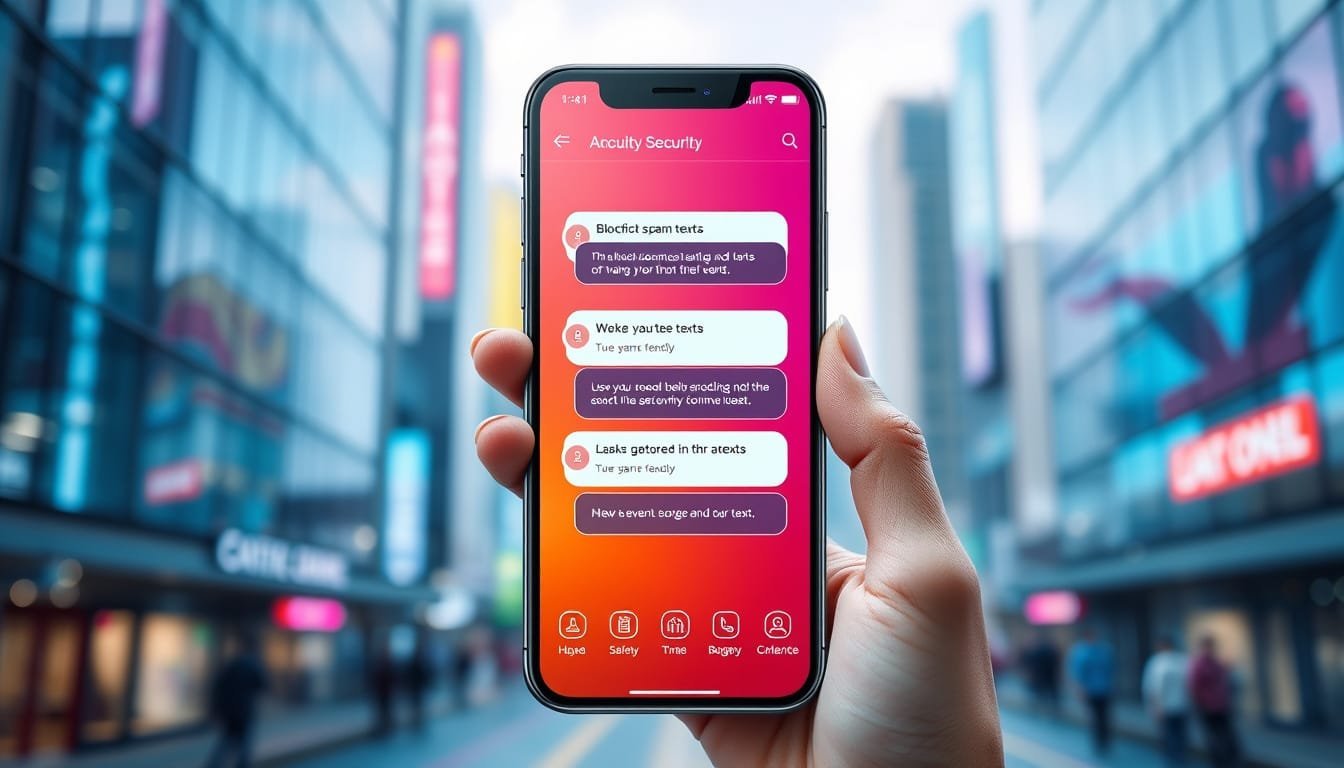
iOS 26 added real anti-scam filtering to the Messages app. If you’ve been getting hammered with fake package alerts and phishing links — and statistically, most of us have — here’s what actually changed and how to set it up.
What iOS 26 Changed in Messages
Apple added automatic message categorization. Your texts now get sorted into groups: known contacts, unknown senders, and spam. The sorting happens on-device, so Apple isn’t reading your messages on a server somewhere.
The spam category does three things that matter:
Disables all links and phone numbers in flagged messages. You literally can’t tap a phishing link by accident.
Blocks replies to spam messages. Scammers use replies to confirm your number is active — this shuts that down.
Silences notifications from unknown senders. No more buzzing at dinner because some bot wants your Social Security number.
How to Turn On Scam Text Filtering
Open Settings > Messages > Unknown & Spam and toggle on Filter Unknown Senders. That’s it. Messages from people not in your contacts will get sorted into the Unknown Senders tab automatically.
For the spam detection layer, make sure you’re running iOS 26 or later. Go to Settings > General > Software Update to check. The spam categorization activates automatically once you’re on the right version.
When Legit Messages Get Flagged
It happens. Delivery notifications from new services, two-factor codes from apps you just signed up for, texts from a new doctor’s office. Any unknown number can land in the filtered pile.
To rescue a message: open the Unknown Senders or Spam tab, find the message, and tap Move to Inbox. The sender gets whitelisted going forward. Check that filtered folder every few days until you’re confident the system has learned your patterns.
What This Doesn’t Fix
On-device filtering isn’t perfect. Scammers who spoof known contacts will still get through. iMessage phishing (where someone sends from an Apple ID, not a phone number) also slips past the unknown-sender filter. Stay skeptical of any message asking you to click a link or share personal info, even from contacts.
For extra protection, report spam messages: long-press the message, tap More, then Report Junk. Apple uses these reports to improve filtering for everyone.
Best Budget Pocket Knife Under $30: Most pocket knives under $30 fall into one of two buckets: a real tool from a company that’s been making blades for decades, or a stamped-steel novelty that won’t hold an edge past the first box you open. The trick isn’t finding a knife under $30 — Amazon will show you ten thousand of them. The trick is finding one that’s actually worth carrying. Here are five that are, and what each one is actually for.
Table of Contents
Best Budget Pocket Knife: The short version
Knife
Street price
Best for
Ontario RAT II
~$25
Budget workhorse, hardest use for the money
CRKT Drifter
~$20
One-handed opening, pocket clip
Opinel No.08
~$18
Food prep, light utility, ultralight carry
Kershaw Shuffle
~$20
Multi-tool crossover, has a bit driver
Case Peanut
~$30
Traditional slipjoint, no clip, heritage carry
Ontario RAT II — the one that gets abused and keeps working
The RAT II is what happens when a company builds a knife for hard use instead of for looking good on a table. AUS-8 steel isn’t fancy, but it’s easy to resharpen in the field, and the handle scales are grippy enough to use with gloves on. It’s a full-size blade in a budget knife’s price bracket, which is the whole appeal — you’re not paying for branding, you’re paying for steel and a lock that holds.
The tradeoff: it’s not going to win a beauty contest, and the stock edge sometimes needs a touch-up before first use. Neither matters if this is living in a truck or a tool bag.
[JOHN: your line — have you carried one of these, or is this the one you’d grab first?]
CRKT Drifter — assisted opening without the assisted-opening price tag
The Drifter opens fast with one hand thanks to CRKT’s spring-assist mechanism, and it carries flat with a reversible pocket clip. 8Cr13MoV steel won’t hold an edge as long as premium steel, but it’s easy to sharpen and cheap enough that you’re not sweating a lost knife. For a knife you’ll actually pull out of your pocket ten times a day, that fast one-handed open matters more than steel snobbery.
Opinel No.08 — the one that’s actually good at cutting things
Everything else on this list is built to survive abuse. The Opinel is built to cut — apples, rope, cardboard, packaging, whatever’s in front of you — and it does that better than knives twice its price. Carbon steel takes a scary-sharp edge; stainless trades a little of that for zero maintenance. Either way it’s light enough to forget you’re carrying it, which is the point.
It’s not a pry bar and it’s not going to baton through firewood. That’s not what it’s for. If you want a knife that just cuts well, this is it.
Kershaw Shuffle — the multi-tool knife
The Shuffle folds a 2.6-inch blade, a bit driver, a bottle opener, and a flathead into one body, which makes it the closest thing on this list to the multi-tools we covered in the budget multi-tool roundup. If you want one thing in your pocket instead of two, this is the trade: you give up a little refinement on each function to get all of them in one place.
Case Peanut — the one your grandfather would recognize
No pocket clip, no assisted opening, no modern steel — and that’s the point. The Peanut is a two-blade slipjoint that’s been in continuous production for close to a century, made in the US, and small enough to disappear in a coin pocket. It’s not the knife you grab for hard use. It’s the one you carry every day for forty years because it never gives you a reason to replace it.
Best budget pocket knife: what to skip
Skip anything listing “440 stainless steel” with no country of origin or heat-treat info — that’s marketing language hiding a soft blade that won’t hold an edge past a week of real use. And skip liner locks under $15 with visible play in the blade when open; a lock that flexes is a lock that eventually fails when you need it. Every knife above comes from a company that’s been making blades long enough to stand behind a warranty.
Best Budget Pocket Knife: FAQ
What’s the best budget pocket knife for everyday carry?
The Ontario RAT II if you want one knife that does everything reasonably well. The Opinel No.08 if cutting performance matters more than toughness.
Are budget pocket knives durable enough for daily use?
The ones on this list, yes. AUS-8 and 8Cr13MoV aren’t premium steels, but they’re proven, easy to sharpen, and used in knives that see real daily carry. The failure point with cheap knives is almost always the lock or the handle material, not the blade steel.
Can I fly with a pocket knife?
No — all five of these have a fixed blade over the TSA limit for carry-on. Check bags only, same as the Kershaw PT-2 we covered in the multi-tool guide.
About the author: John Corcione has run IT and telecom projects for 15+ years, which mostly means he’s field-tested more gear than he’d like to admit — some of it great, most of it forgettable. Tooled Out is where he writes up what’s actually worth buying. Say hi or see what else he’s building at dot.cards/gigawerx.
Best Budget USB-C Docking Station: Most cheap docking stations fail the same way: they promise “12-in-1” or “16-in-1” and then choke the second you plug in two 4K monitors and a webcam at the same time. Port count on the box means nothing if the chipset behind it can’t push the bandwidth (the USB-IF specs matter more than port count). Here are five that actually hold up under a real remote-work setup, and what each one is actually for.
Table of Contents
Best Budget USB-C Docking Station: The short version
Dock
Street price
Best for
UGREEN Revodok Pro 7-in-1
~$30
Single-monitor setup, best value
Anker 555 USB-C Hub (8-in-1)
~$45
Dual USB-A peripherals, travel-friendly
Baseus 10-in-1
~$40
Ethernet + card reader combo
Plugable USB-C Triple Display
~$50
Three monitors on a budget
Dell WD19S (refurbished)
~$45
OEM reliability, single-cable laptop charging
UGREEN Revodok Pro 7-in-1 — the one that just works for one screen
If your setup is a laptop and a single external monitor, the UGREEN Revodok Pro is the easy call. It pushes 4K@60Hz over HDMI, delivers 100W power passthrough so your laptop charges while you work, and moves data at 10Gbps over its USB-A ports — fast enough for an external SSD without bottlenecking. It runs cool, which matters more than it sounds like it should; cheap docks that run hot are usually the ones that drop connections under load.
[JOHN: your line — is this the one you’ve actually used for a home office setup?]
Anker 555 USB-C Hub — the one built for people who still use wired peripherals
Eight ports, including two USB-A slots for a wired mouse and keyboard, which a surprising number of budget docks skimp on in favor of extra USB-C. Anker’s build quality shows in the aluminum housing — it survives being tossed in a bag for travel better than the plastic docks in this price range. The tradeoff: single-display only, so it’s not the pick if you’re running dual monitors.
Baseus 10-in-1 — the one with a real card reader
Most budget docks bolt on an SD card slot as an afterthought that reads at a crawl. Baseus’s actually hits real UHS-I speeds, which matters if you’re offloading photos or video on the regular. It adds a gigabit Ethernet port too, which is the one spec worth paying attention to if your home WiFi is unreliable and you need a wired connection for video calls.
Plugable USB-C Triple Display — the one that actually drives three monitors
Most sub-$50 docks max out at one or two displays. Plugable’s DisplayLink-based dock pushes three, which is the whole reason to buy it. The catch: DisplayLink runs through software instead of native GPU output, so it adds a small amount of latency — fine for spreadsheets and email, noticeable if you’re doing anything graphics-intensive. Know what you’re trading before you buy it.
Dell WD19S (refurbished) — the OEM dock that outlives the laptop it came with
Buying refurbished OEM gear is the move nobody talks about in this category. The WD19S was Dell’s business-line dock, built for daily docking and undocking thousands of times without the port wearing out — a failure point on every cheap dock eventually. Refurbished units run close to budget-dock pricing and come with the reliability of hardware that was designed for a five-year corporate refresh cycle, not a one-year consumer warranty.
Best budget USB-C docking station: what to skip
Skip anything advertising “18-in-1” or higher under $40 — that port count usually means several ports are wired to the same internal controller and can’t run at full speed simultaneously. And skip docks with no listed power delivery wattage; if it doesn’t say how many watts it passes through to charge your laptop, assume it’s not enough for anything bigger than an ultrabook.
Best Budget USB-C Docking Station: FAQ
What’s the best budget docking station for a dual-monitor remote setup?
The Plugable USB-C Triple Display if you need three screens, or two of the single-display docks above if you’d rather avoid DisplayLink’s software overhead and don’t mind the extra port.
Can a budget USB-C docking station charge a laptop?
The ones with listed power delivery wattage do — check for 65W minimum for most laptops, 100W if you’re running a larger workstation-class machine. Docks with no PD spec listed usually don’t charge, or charge too slowly to matter.
Is a refurbished OEM dock actually reliable?
Yes, more often than a new no-name dock. OEM docks like the Dell WD19S were built for corporate fleets that plug and unplug hundreds of times a week — the connectors and internal components are rated for it in a way most consumer docks aren’t.
About the author: John Corcione has run IT and telecom projects for 15+ years, which means he’s set up more remote-work rigs than he can count — some of it great, most of it forgettable. Tooled Out is where he writes up what’s actually worth buying. Say hi or see what else he’s building at dot.cards/gigawerx.
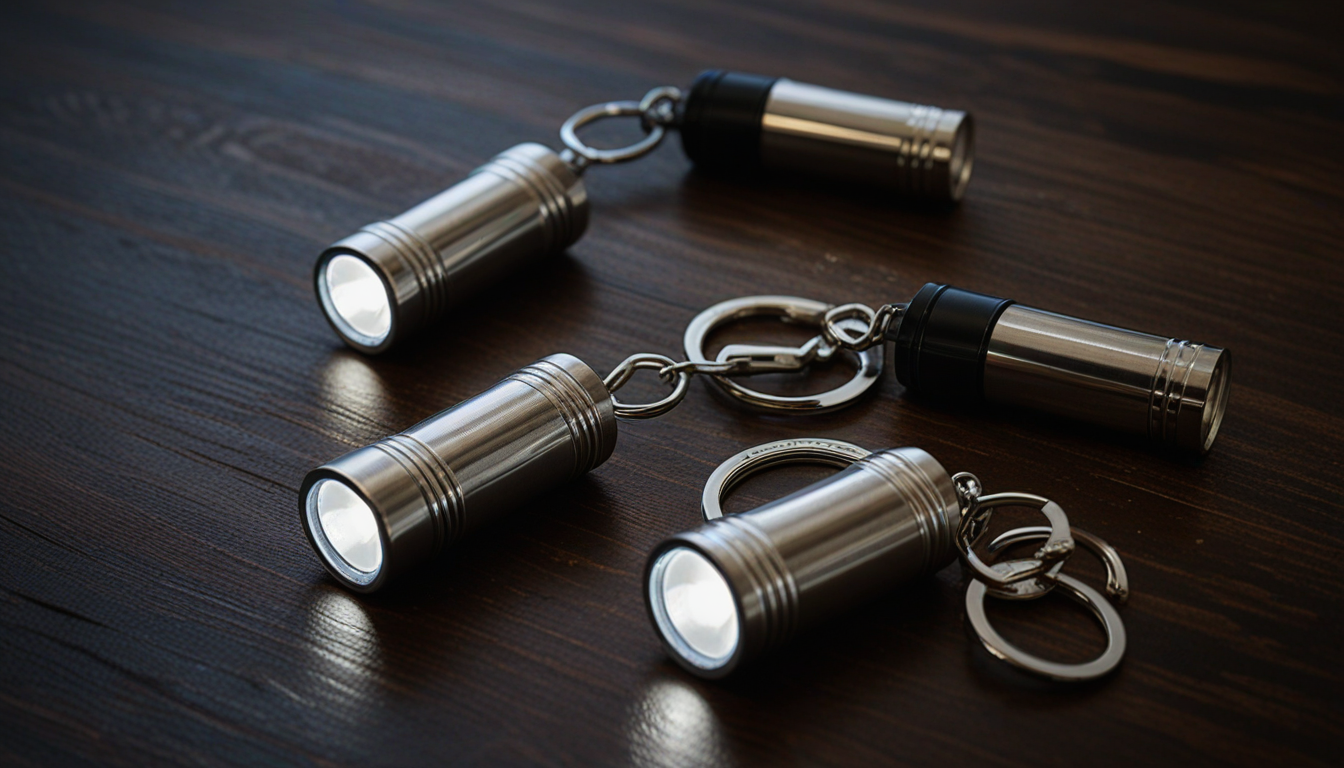
Most keychain flashlights are a joke — a dim LED behind a plastic lens that dies in a drawer within a month. But a handful of them are genuinely useful: bright enough to actually see by, small enough to forget you’re carrying, and built to survive living on a keyring for years. Here are five worth carrying, and what each one is actually for.
Table of Contents
Budget Keychain Flashlight: The short version
Light
Street price
Best for
Nitecore TIKI
~$19
Rechargeable, brightest in this list
Wuben G5
~$20
USB-C rechargeable, budget powerhouse
Streamlight Key Mate
~$12
Battery-swap simplicity, no charging cable to lose
Pelican 1810
~$12
Durability over brightness, drop it and forget it
Hyper Tough Keychain LED
~$3
The $3 test — see if you’ll use one at all
Nitecore TIKI — the brightest thing on this list, by a lot
The TIKI pushes real lumens out of a body barely bigger than a car key fob, and it’s rechargeable over USB-C instead of eating coin cells. The stainless steel bezel takes the abuse of living in a pocket with keys and coins, and the button is easy to find one-handed in the dark, which matters more than it sounds like it should.
I haven’t carried this exact one, but this is the pick I’d grab first — the brightness-to-size tradeoff is hard to beat at this price. If you want to see similar lights in hand, I keep a running showcase on TikTok Shop under @1jcorcione (Gadgetwerx).
Wuben G5 — the budget rechargeable that punches above its price
USB-C rechargeable, aluminum body, and enough output to actually light up a room instead of just a keyhole. The G5 undercuts the Nitecore on price and still holds its own on brightness. The tradeoff is fit and finish — it doesn’t feel quite as refined in hand — but for the price gap, that’s a fair trade for most people.
Streamlight Key Mate — no cable, no charging, no excuses
Not every light needs to be rechargeable. The Key Mate runs on a single coin cell, swaps in seconds, and never leaves you stuck because you forgot a cable. It’s dimmer than the rechargeable options here, but it’s also the one you’ll never find dead when you actually need it — no charge cycle to forget.
Pelican 1810 — built like it’s going to outlive you
Sixteen lumens doesn’t sound impressive next to the others on this list, and it isn’t — this one’s not about brightness. It’s about a solid aluminum body that shrugs off drops, water, and years of keyring abuse without the lens cracking or the switch failing. If you want the light that’s still working in a decade, this is it.
Hyper Tough Keychain LED — the $3 experiment
Buy this one first if you’re not sure you’ll actually use a keychain light. It’s cheap, it’s dim, and it won’t survive years of hard use — but if you find yourself reaching for it every week, that’s your sign to upgrade to something built to last. If it sits unused, you’re out three dollars instead of twenty.
Best Budget Keychain Flashlight: What to skip
Two things separate the useful ones from the junk drawer. Skip anything that doesn’t list an actual lumen count (measured per the ANSI/NEMA FL1 standard) — if the packaging just says “super bright” with no number, that’s a light that’s hiding something. And skip unbranded Amazon listings with a wall of identical five-star reviews posted the same week; that’s a pattern of incentivized reviews, not a reliable light. Every light above comes from a company that’s been making them long enough to stand behind a warranty.
FAQ
Are rechargeable keychain flashlights worth it over battery ones?
Depends on your habits. If you’re diligent about charging things, rechargeable wins on brightness and long-term cost. If you’ll forget to charge it and need it to just work, a coin-cell light like the Key Mate is the safer bet.
What’s the brightest budget keychain flashlight under $20?
The Nitecore TIKI. It’s the clear brightness leader in this price range and still small enough to disappear on a keyring.
How long do budget keychain flashlight batteries actually last?
Coin-cell lights like the Key Mate or Pelican 1810 can sit for a year or more on standby before the battery needs swapping. Rechargeables need a top-up every few weeks of regular use, depending on how often you actually turn it on.
I don’t have a personal favorite on my own keys yet, but I’m actively testing this category — check my TikTok Shop showcase (@1jcorcione, Gadgetwerx) for similar picks and real hands-on looks as I add them.
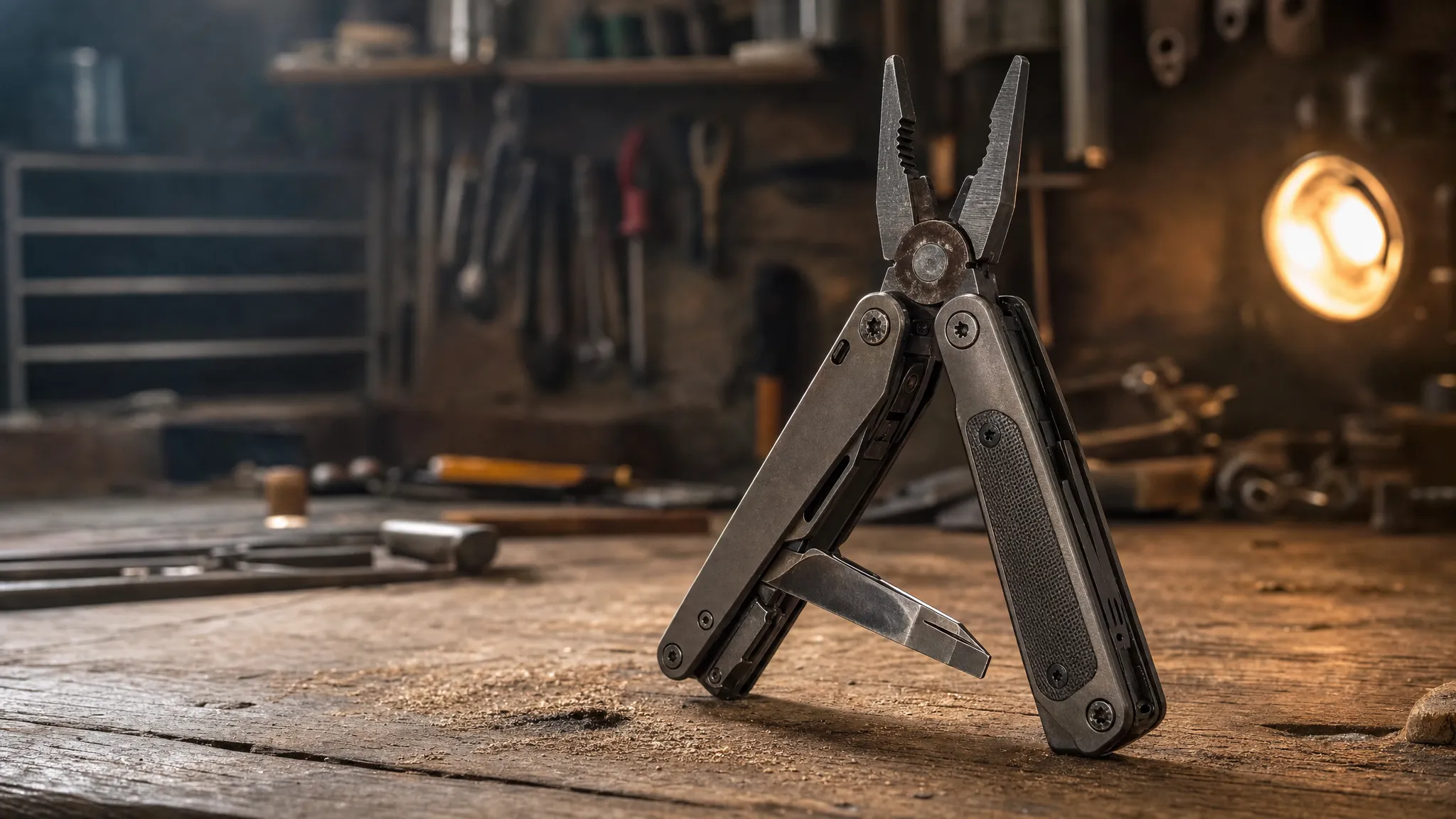
This is my list of the best budget multi-tools for under $25. No hype, no fluff! For over a decade I have had one in my truck, on my keychain, and in a toolbox that made the move from Kansas City to Florida. Most of them were garbage. The ones that survived actual daily use all had one thing in common: they did fewer things, but did them without falling apart in your hand. I’ve bought enough $15 Amazon specials to know that “18-in-1” usually means “0 tools that work.” Here are five that actually held up after weeks of real carry — and what each one is best at.
Table of Contents
Best Budget Multi-Tools: The short version
Tool
Street price
Best for
Stanley 12-in-1
~$17
Glovebox, junk drawer, first multi-tool
Victorinox Spartan
~$23
Pocket carry, the classic for a reason
Gerber Dime
~$25
Keychain pliers, smallest real tool
Kershaw PT-2
~$10
Keychain, TSA-safe, no blade
Gerber Shard
~$8
The $8 test — see if you’ll even use one
Stanley 12-in-1 — the best $17 you’ll spend on tools this year
The first thing you notice picking up the Stanley 12-in-1 is the weight — it feels like a real tool, not a toy. Stanley isn’t trying to beat Leatherman, and that’s the point. The pliers have enough bite to pull a finish nail, the blade holds an edge through cardboard without complaining, and the Phillips driver actually fits a #2 screw head instead of spinning uselessly. I kept one in my truck’s glovebox for two weeks straight — used it on a loose license plate bolt, a stuck battery terminal, and about fifteen Amazon boxes. At roughly $17, you don’t worry about losing it. That’s the whole pitch.
Victorinox Spartan — 100 years of not screwing this up
No pliers, and it doesn’t matter. The Spartan is two blades, two drivers, a can opener, a corkscrew, and fit-and-finish that makes everything else on this list feel like a cereal box prize. The main blade came shaving-sharp out of the box — I sliced through paracord, packaging tape, and an apple on day one without touching a sharpener. Every tool snaps into position with a click you can feel. The scales are smooth enough to sit in a front pocket without snagging, and at around $23, this is the one you’ll still be carrying when your kids are in college.
Gerber Dime — real pliers on a keychain
The Dime squeezes ten tools including spring-loaded pliers into something that disappears on a keyring. The honest tradeoff: it’s not built like the bigger Gerbers, and reviewers say so. Fine — it’s a $25 keychain tool, not a work tool. For opening packages, tightening the occasional screw, and pulling splinters, it’s the best small option going.
I’ve carried a Gerber for years — same one, still going. Mine has permanent residency in my toolbox, and it made the move with me from Kansas City to Florida. Cheap tools don’t survive interstate moves. This one did.
Kershaw PT-2 — the one you can fly with
No blade, so TSA doesn’t care — I’ve flown with the PT-2 in my carry-on four times without a second look. The PT-2 is a flat steel wafer with a bottle opener, three screwdriver tips, and a pry end. Most wafer tools are useless because you can’t grip them — Kershaw solved that with glass-filled nylon scales that give your fingers a real purchase point. It lives on my keychain and barely adds any bulk. At around $10, it’s the cheapest insurance policy for a work trip.
Gerber Shard — the $8 experiment
Buy the Shard first if you’re not sure you’ll carry a multi-tool at all. It’s one piece of titanium-coated steel — pry bar, drivers, bottle opener, wire stripper. Nothing folds, nothing breaks. If you find yourself reaching for it every week, upgrade. If it sits on your keys unused, you’re out eight bucks instead of eighty.
Best Budget Multi-Tools: What to skip
Two rules I learned the expensive way. First: skip anything advertising more than 15 functions under $25. I bought a “24-in-1” off Amazon that literally bent the first time I used the pliers on a finishing nail. The tool count goes up, the metal thickness goes down, and you end up with a heavy keychain ornament. Second: skip no-name brands with 4.7 stars and 300 reviews that all read like the same person wrote them — that pattern is bought reviews, not build quality. Every tool on this list comes from a company that’s been making multi-tools long enough to have a warranty department that actually picks up the phone.
5 Best Budget Multi-Tools FAQs:
Is a cheap multi-tool worth it over a Leatherman?
Different jobs. A Leatherman Wave is a work tool; these are convenience tools. If you use pliers daily, spend the $100. If you need “usually in reach when something needs opening or tightening,” $25 covers it.
What’s the best budget multi-tools with a knife?
The Spartan. Victorinox blade steel (their proprietary 1.4110 stainless, per Victorinox’s steel guide) outclasses everything else in this price range, and it’s the one you’ll actually keep sharp.
Can I take any of these through airport security?
Only the Kershaw PT-2 — no blade. The Shard usually passes but TSA has discretion, so don’t bet a good pry bar on it.
This post is part of our Best Budget EDC Gear Under `$50 guide, where I cover every category of everyday carry worth buying on a budget.
That’s my five. Where does yours live — keychain, truck, toolbox? Drop it in the comments. More field-tested picks are coming — here’s what this site is about.
About the author: John Corcione has run IT and telecom projects for 15+ years, which mostly means he’s field-tested more gear than he’d like to admit — some of it great, most of it forgettable. Tooled Out is where he writes up what’s actually worth buying. Say hi or see what else he’s building at dot.cards/gigawerx.
Used to monitor number of Google Analytics server requests
10 minutes
__utmb
Used to distinguish new sessions and visits. This cookie is set when the GA.js javascript library is loaded and there is no existing __utmb cookie. The cookie is updated every time data is sent to the Google Analytics server.
30 minutes after last activity
__utmc
Used only with old Urchin versions of Google Analytics and not with GA.js. Was used to distinguish between new sessions and visits at the end of a session.
End of session (browser)
__utmz
Contains information about the traffic source or campaign that directed user to the website. The cookie is set when the GA.js javascript is loaded and updated when data is sent to the Google Anaytics server
6 months after last activity
__utmv
Contains custom information set by the web developer via the _setCustomVar method in Google Analytics. This cookie is updated every time new data is sent to the Google Analytics server.
2 years after last activity
__utmx
Used to determine whether a user is included in an A / B or Multivariate test.
18 months
_ga
ID used to identify users
2 years
_gali
Used by Google Analytics to determine which links on a page are being clicked
30 seconds
_ga_
ID used to identify users
2 years
_gid
ID used to identify users for 24 hours after last activity
24 hours
_gat
Used to monitor number of Google Analytics server requests when using Google Tag Manager
1 minute
_gac_
Contains information related to marketing campaigns of the user. These are shared with Google AdWords / Google Ads when the Google Ads and Google Analytics accounts are linked together.