
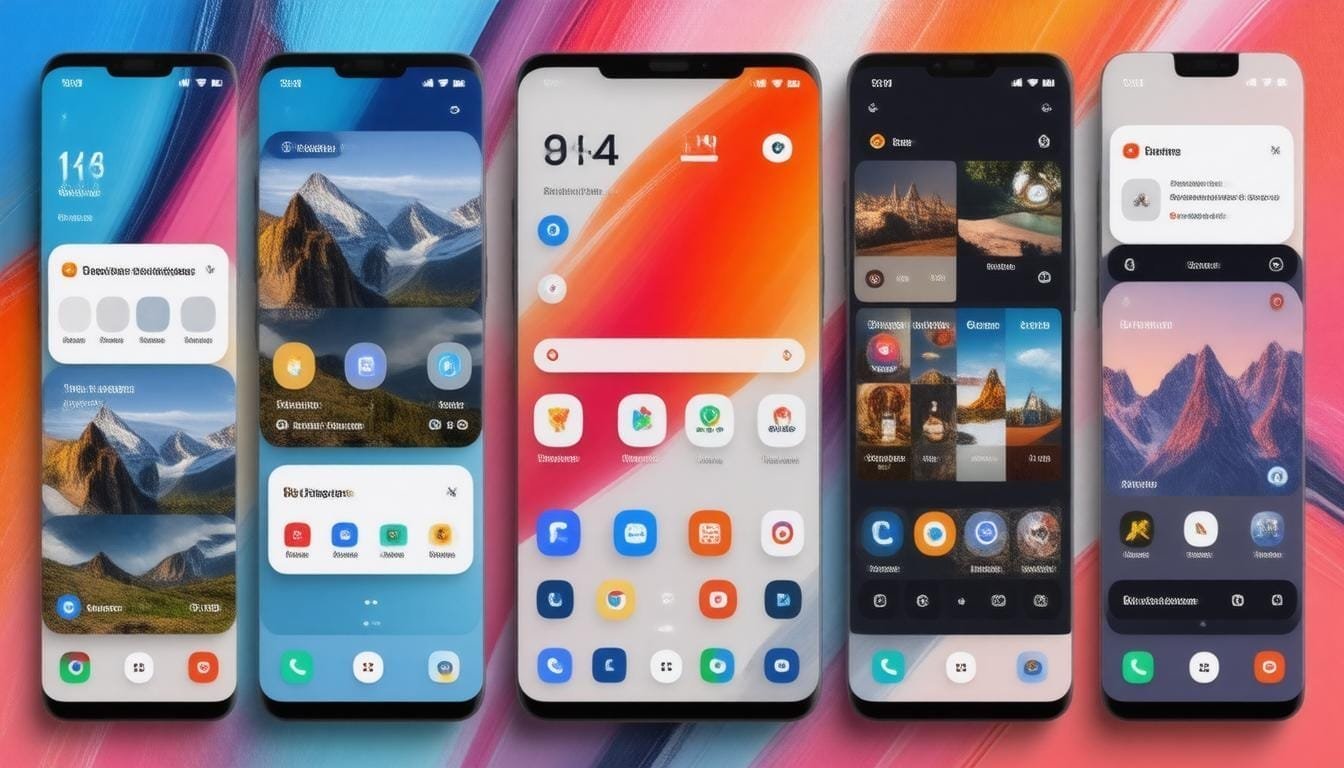
The Google search bar widget on Android takes a custom shortcut for weather, sports, news, finance, or translate, sitting next to the voice and Lens icons. If you run Google app version 16.3.34 or newer, you can set it up in about a minute. This guide covers the setup, the sports shortcut, and what to check when the option doesn’t show up.
Check your Google app version
Open the Google app, tap your profile icon in the top right, then Settings > About. You need 16.3.34 or higher. If you’re behind, update through the Play Store and restart the app.
Add a shortcut to the search bar widget
- Open the Google app and tap your profile icon.
- Go to Settings > Search Widget > Customize Search Widget.
- Scroll to the Shortcuts section.
- Pick one: Weather, Sports, Translate, Finance, or News.
- The icon appears on the search bar widget next to Voice Search and Google Lens.
You can only run one shortcut at a time. Swap it anytime from the same settings screen.
Google sports shortcut: what you get
The sports shortcut is the one people search for most. Tap it from the home screen and you get sports results without typing a team name into search.
It is a single slot, so pick based on what you check daily. If you follow a team during the season, sports earns the slot. If you only glance at the sky before leaving, weather does.
Customize the widget appearance
The same Customize Search Widget screen lets you change:
- Shape: rounded corners, pill shape, or rectangular
- Color: match your wallpaper or pick a custom color
- Transparency: blend into the background or stand out
One limitation: the shortcut icons don’t follow Material You dynamic theming. They keep default Google colors whatever your wallpaper palette is.
Add the search widget if you don’t have it
- Long-press an empty area on your home screen.
- Tap Widgets.
- Find the Google section and drag the search bar widget onto the home screen.
On Pixel phones the search bar is pinned to the bottom by default and can’t be removed through normal settings. The customization options still apply; you reach them through Google app settings instead of long-pressing the widget.
Shortcut option missing? Try these fixes
- Update the Google app. Below 16.3.34 there is no Shortcuts section.
- Remove and re-add the widget. An older widget instance may not pick up new options until you place a fresh one.
- Clear the Google app cache. Settings > Apps > Google > Storage > Clear cache. This does not delete your account or data.
- Check your launcher. Some third-party launchers wrap the search widget. Test with your phone’s default launcher.
Update: Galaxy Z Fold 8 Ultra
I have since moved to a Galaxy Z Fold 8 Ultra. The Google app settings and the Customize Search Widget screen look the same as before, so the steps above apply unchanged.
More home screen shortcuts
Maps has its own set: see Google Maps widget shortcuts on Android for live traffic and one-tap Home and Work directions. For screenshots, we cover 5 ways to take a screenshot on Android. The full list of features worth setting up lives in the Android Tips and Tricks hub.
Please support our other platforms it helps support the site, Thanks! Check out our links at Linktree and Dot Cards.